Mappings
Mappings is a screen with a list of remapped buttons and an option to remap a new button. You can also see whether a mapping is disabled or has constraints.
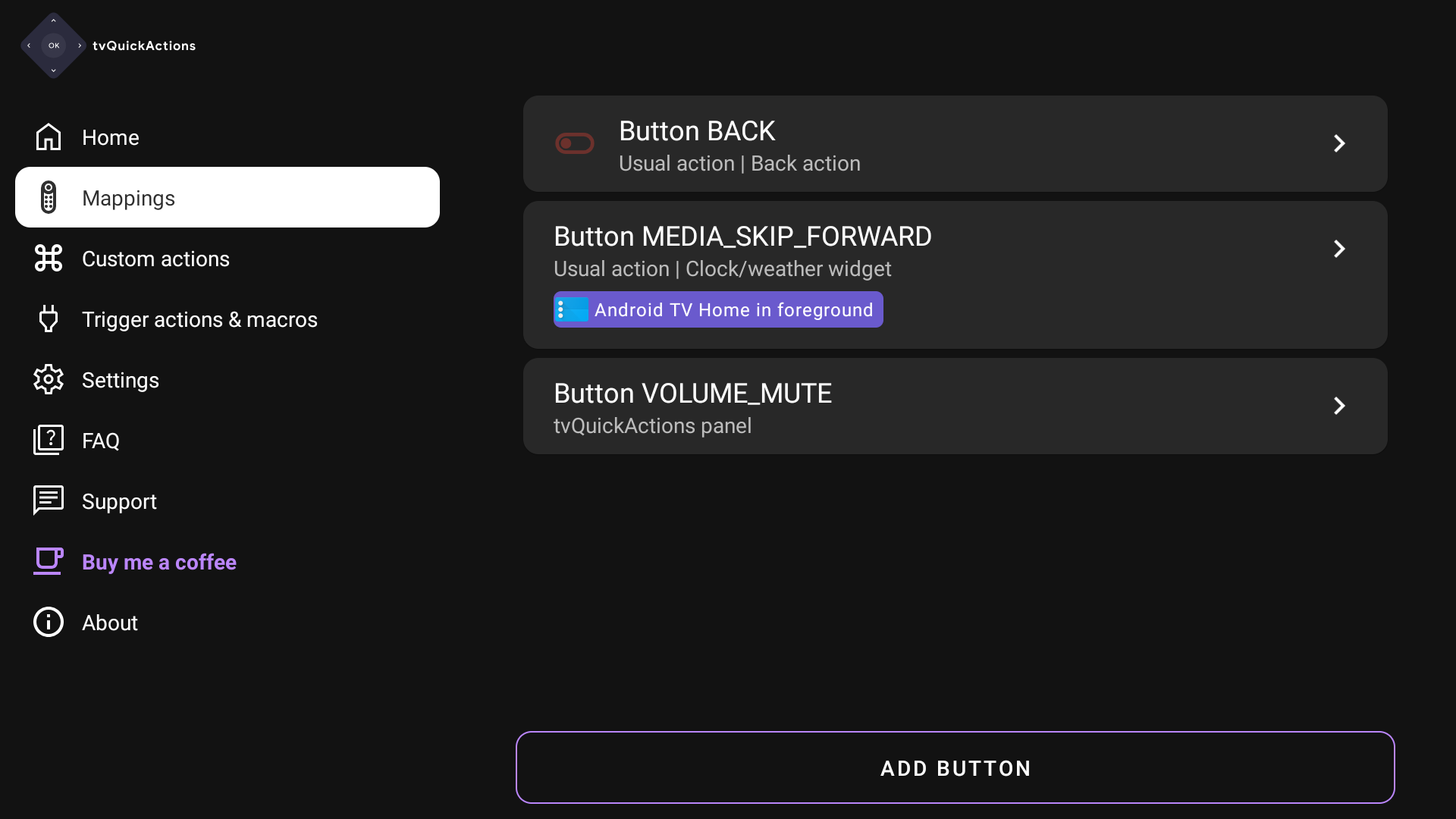
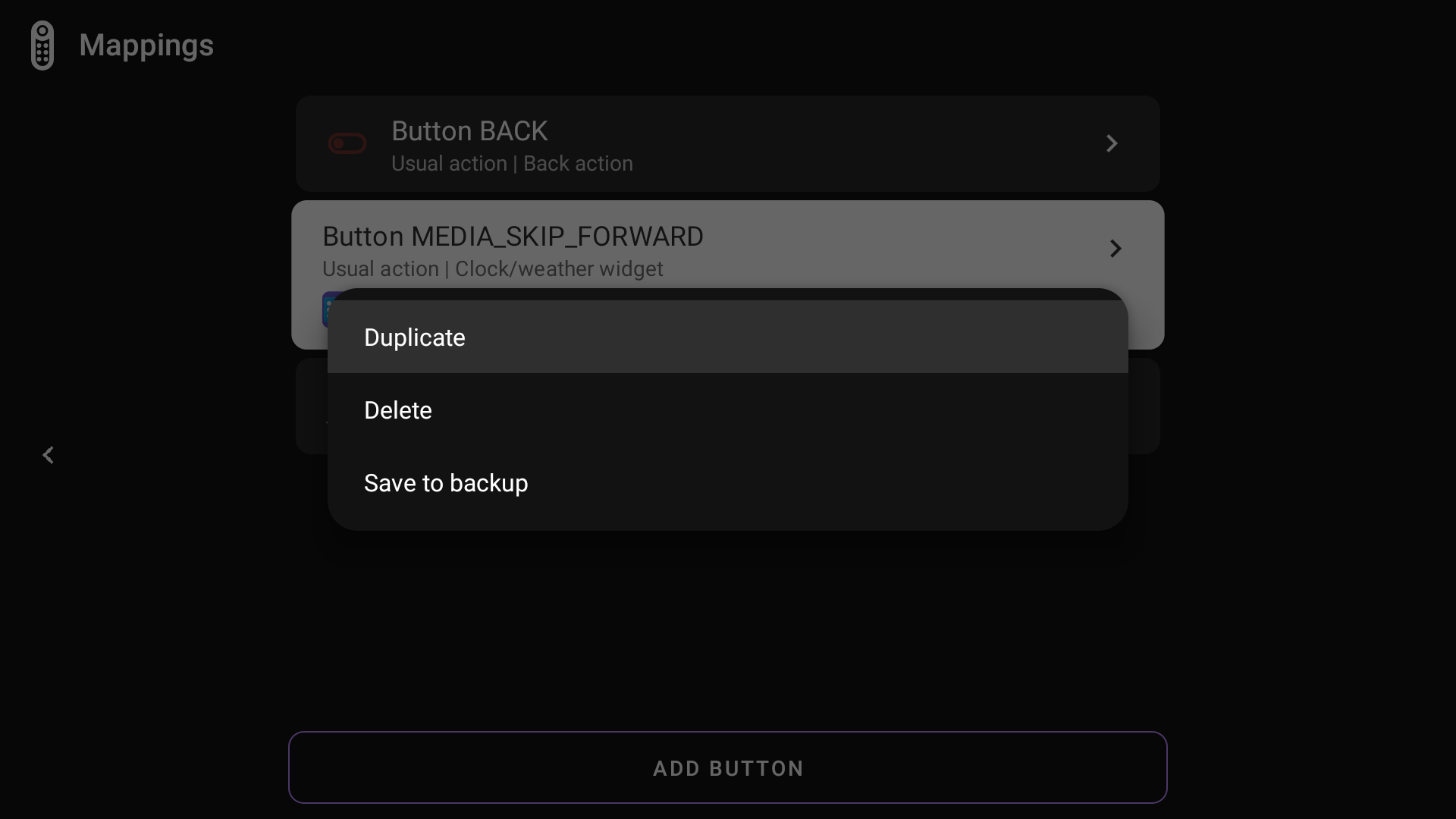
Long-press a mapping for quick options: duplicate it, delete it, or save it to a backup.
Use "Add button" at the bottom of the page to remap a button.
Current button
When you open a mapping, the first field shows which button is being remapped. You can change the remapped button by pressing "Current button" while keeping all other settings.
Button action type
There are three remapping types in the app: usual action, tvQuickActions panel, and button emulation. The default type is "tvQuickActions panel".
Usual action
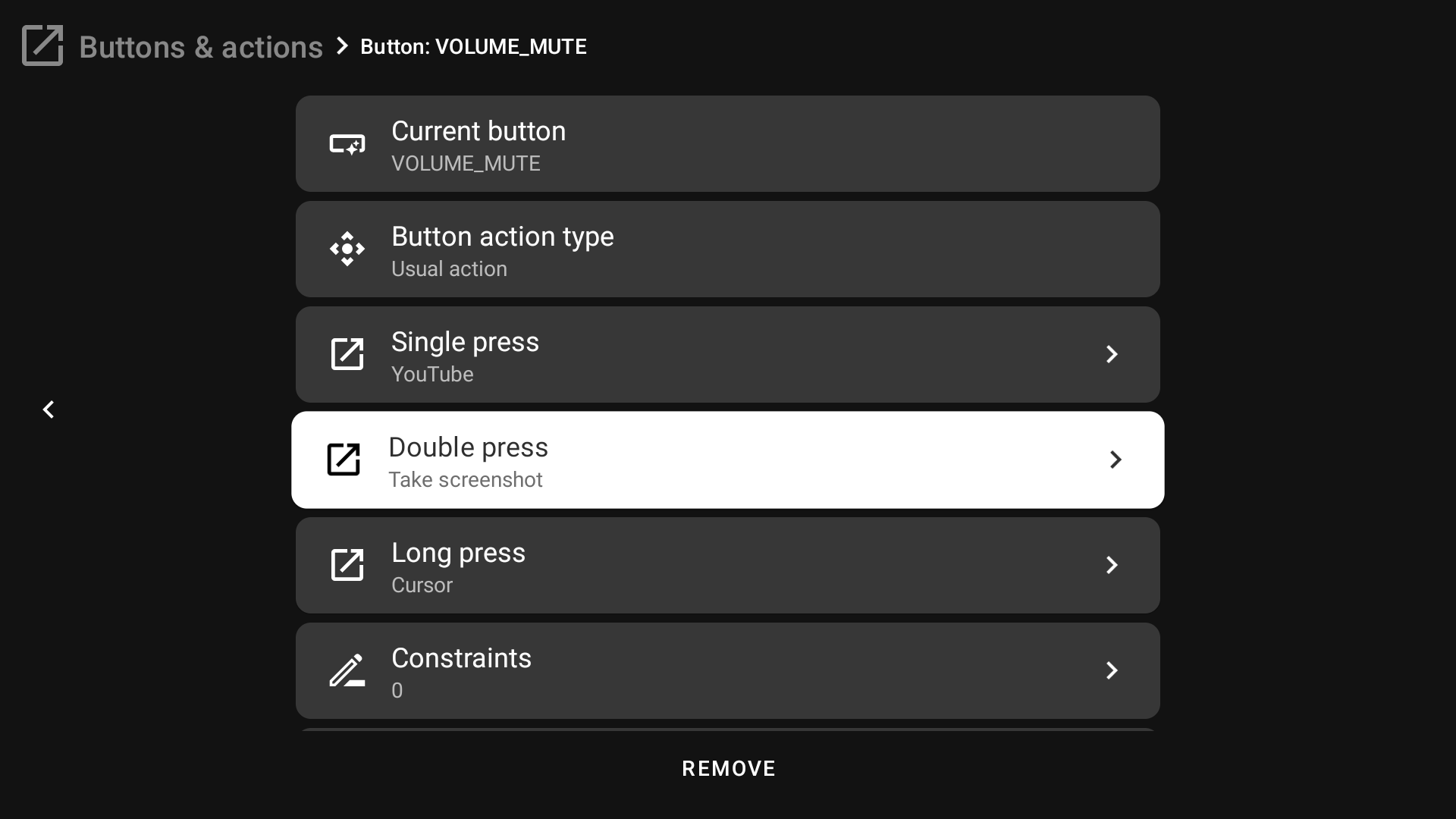
The "Usual action" type allows you to set actions for single, double, and long presses of the remapped button.
tvQuickActions panel
If you use the tvQuickActions panel type, you can set 5 actions for each D-pad direction (up, left, down, right) plus OK. 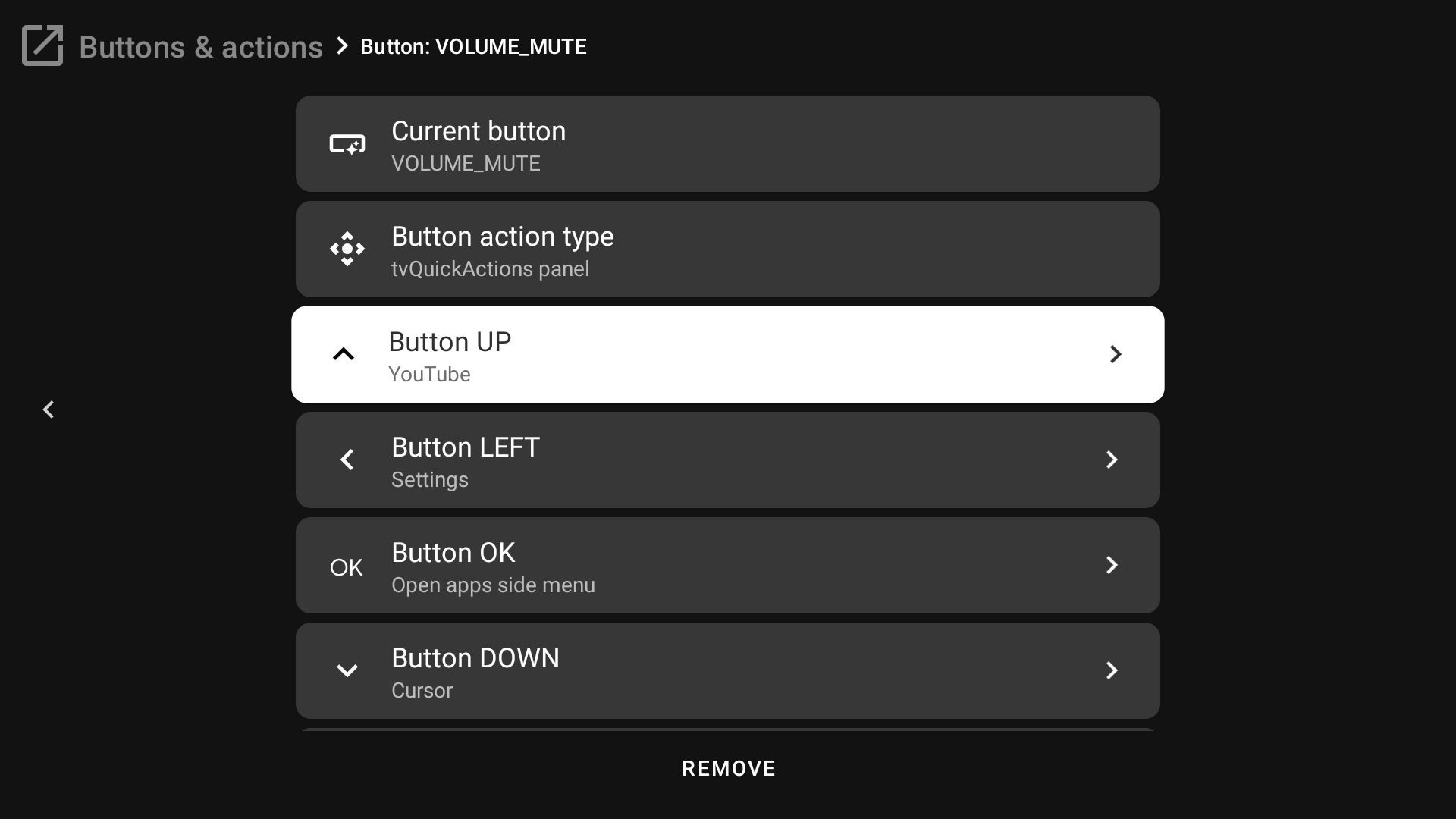
Then, when you press the remapped button, you will see the tvQuickActions panel with your selected actions. Press up, left, down, right, or OK to run the action you need. 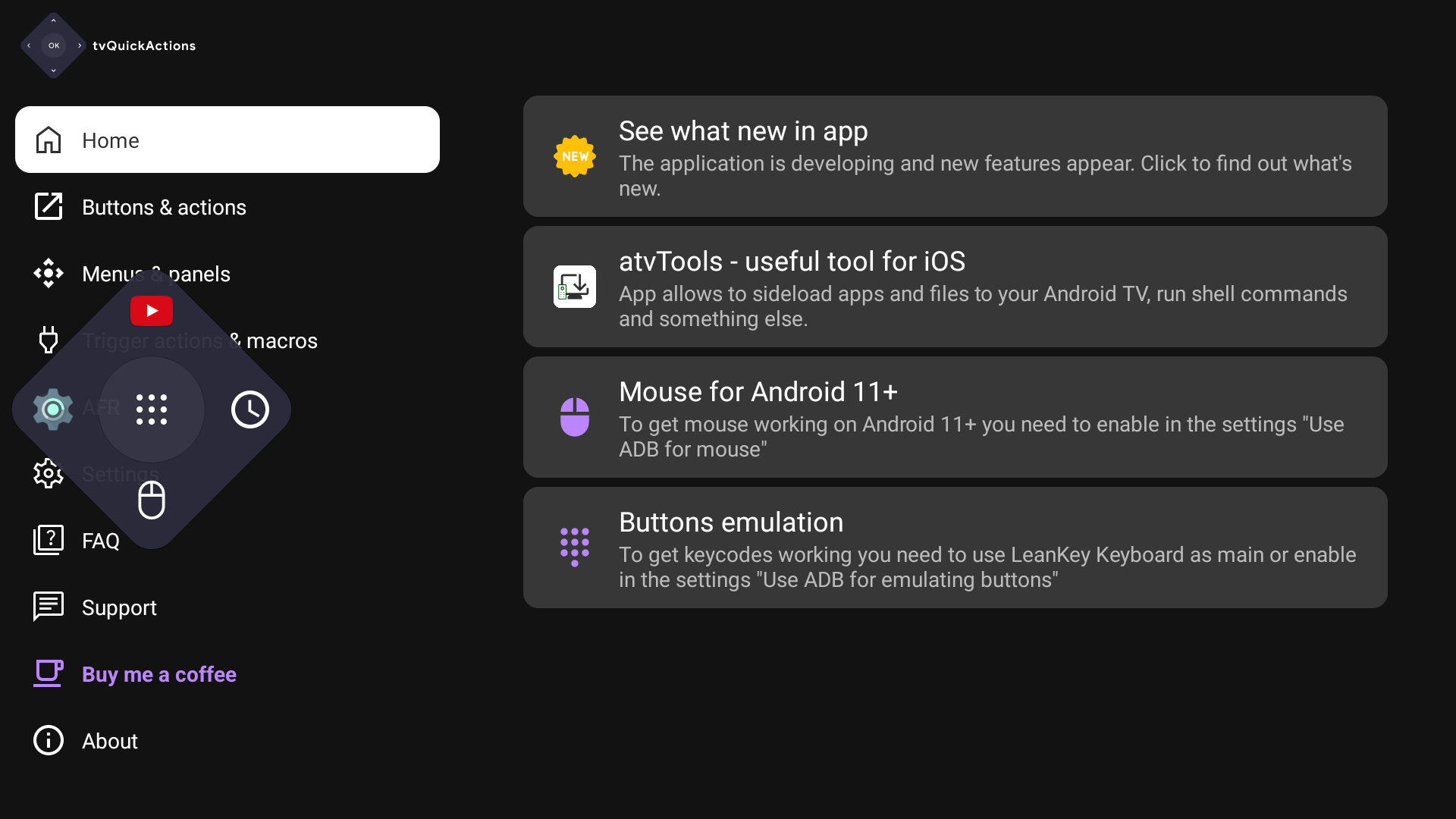
Button Emulation
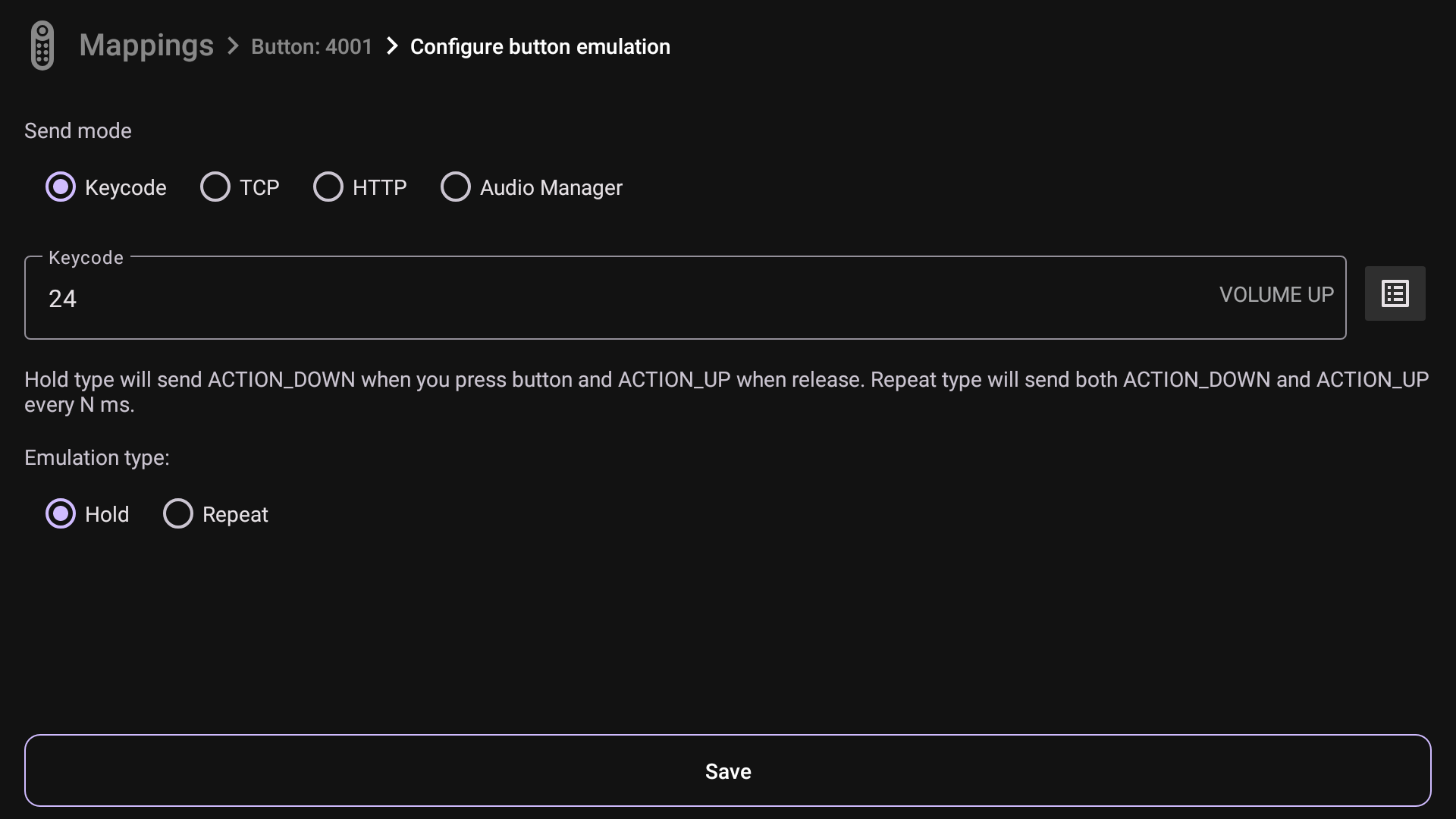
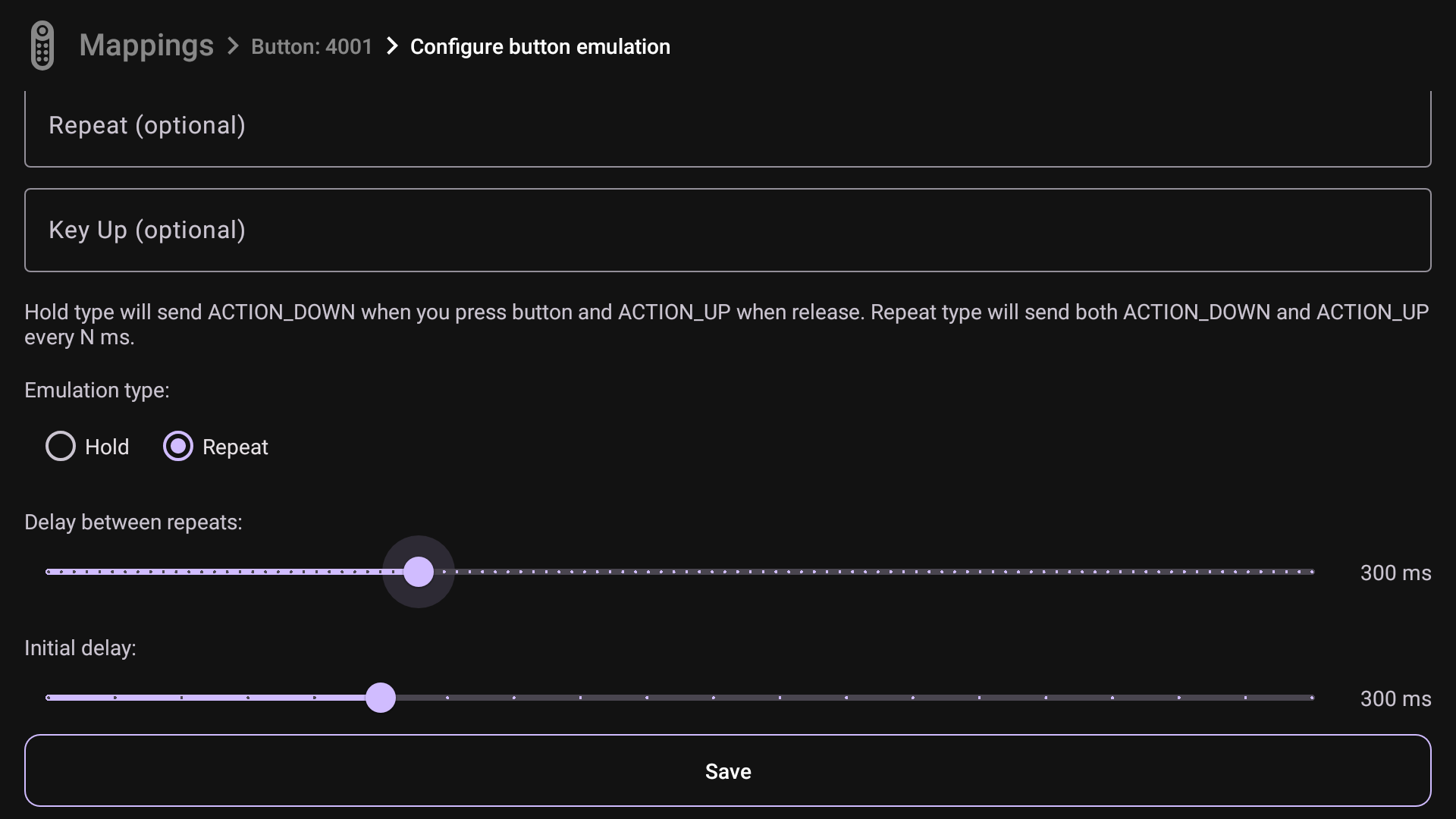
Button emulation means that you can emulate default button behaviour which can work in two ways (depends on remote control): - Hold - send KeyEvent.ACTION_DOWN when you press button and KeyEvent.ACTION_UP when you release button with selected keycode - Repeat - send both KeyEvent.ACTION_DOWN/KeyEvent.ACTION_UP together every N second while you keep pressing button with selected keycode
Keycode
Keycode mode for button emulation allows to emulate another keycode. For example, Volume Up button on your remote control is broken. If you use just keycode action to remap another button to Vol+, you have to press many times to change volume on mamy points, but with button emulation you can use long press as before.
IMPORTANT!
This function requires that you have the option 'Use ADB speed up' enabled, or that you set a supported virtual keyboard such as LeanKeyKeyboard, or tvQuickActions' own IME, as the default input method.
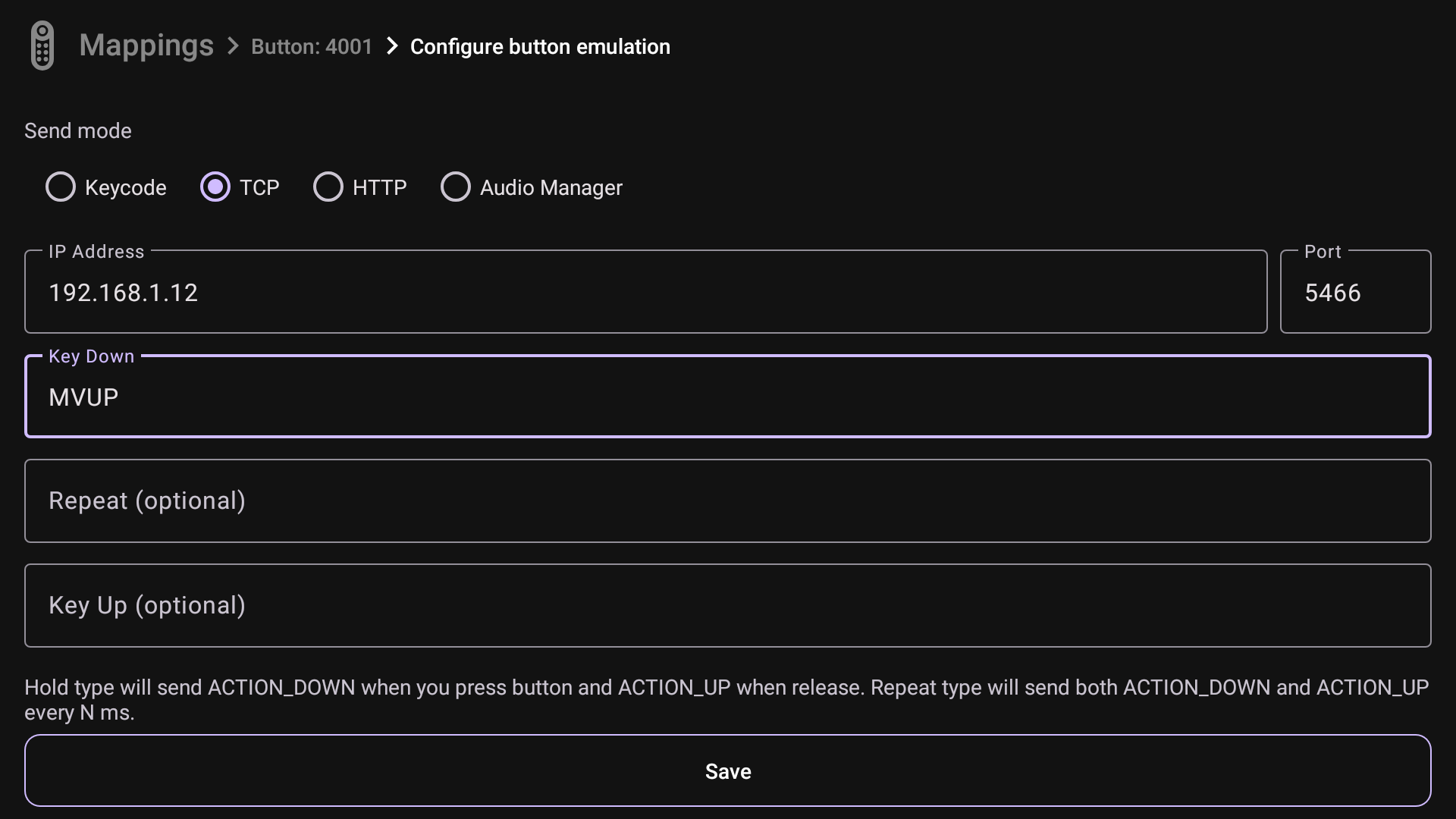
TCP
TCP mode can be useful, for example, when you want to control volume of AV receiver from the same remote control. In this case, "Repeat" type will be more suitable, because receiver doesn't recognize if you hold button or not, so we have to send command every N seconds while you keep pressing.
HTTP
HTTP mode has the same sense like TCP, but in this case you have to specify link(s) which should be requested on button press. Optionally you also can specify links for repeat case and key up.
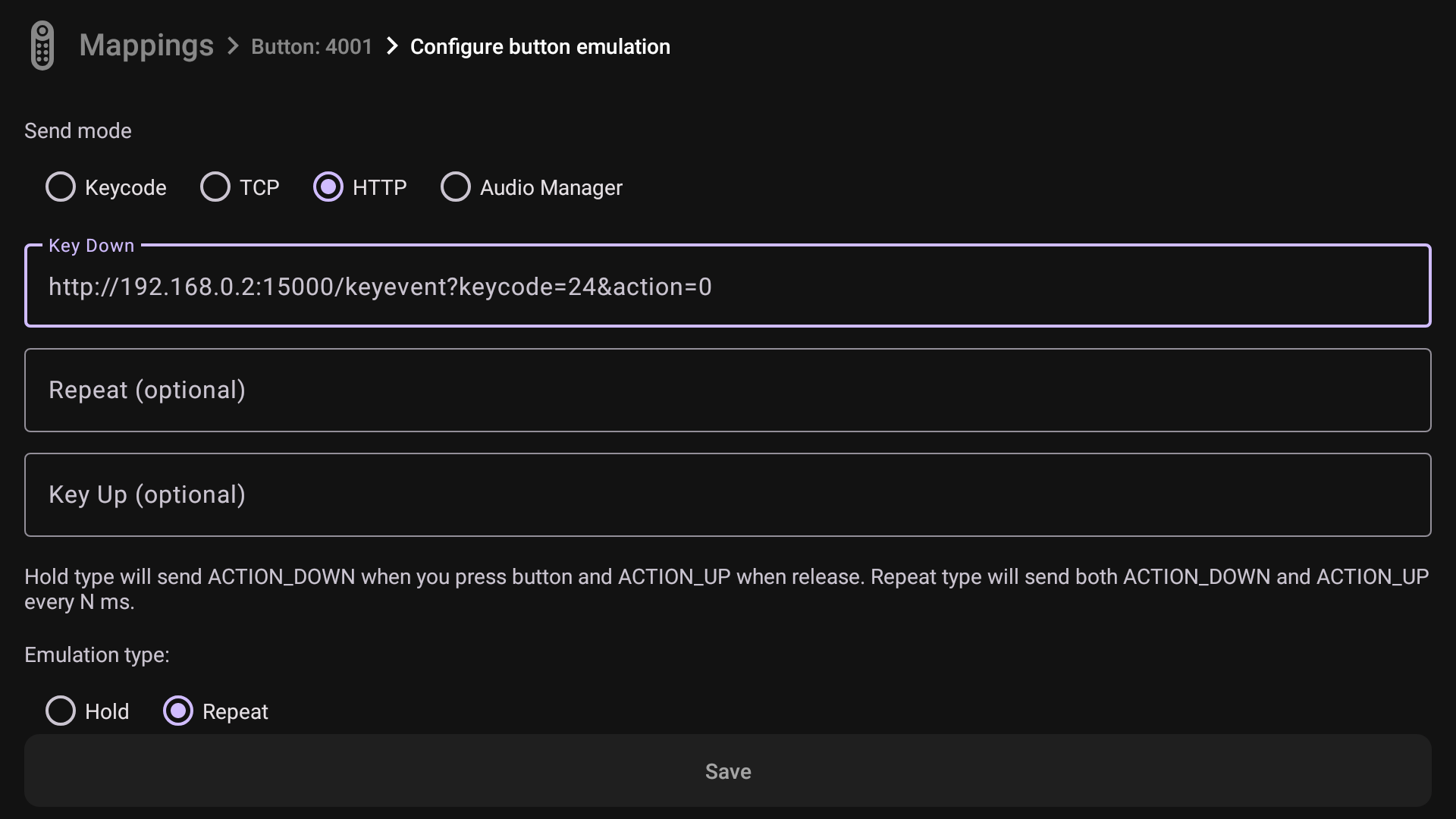
Audio Manager
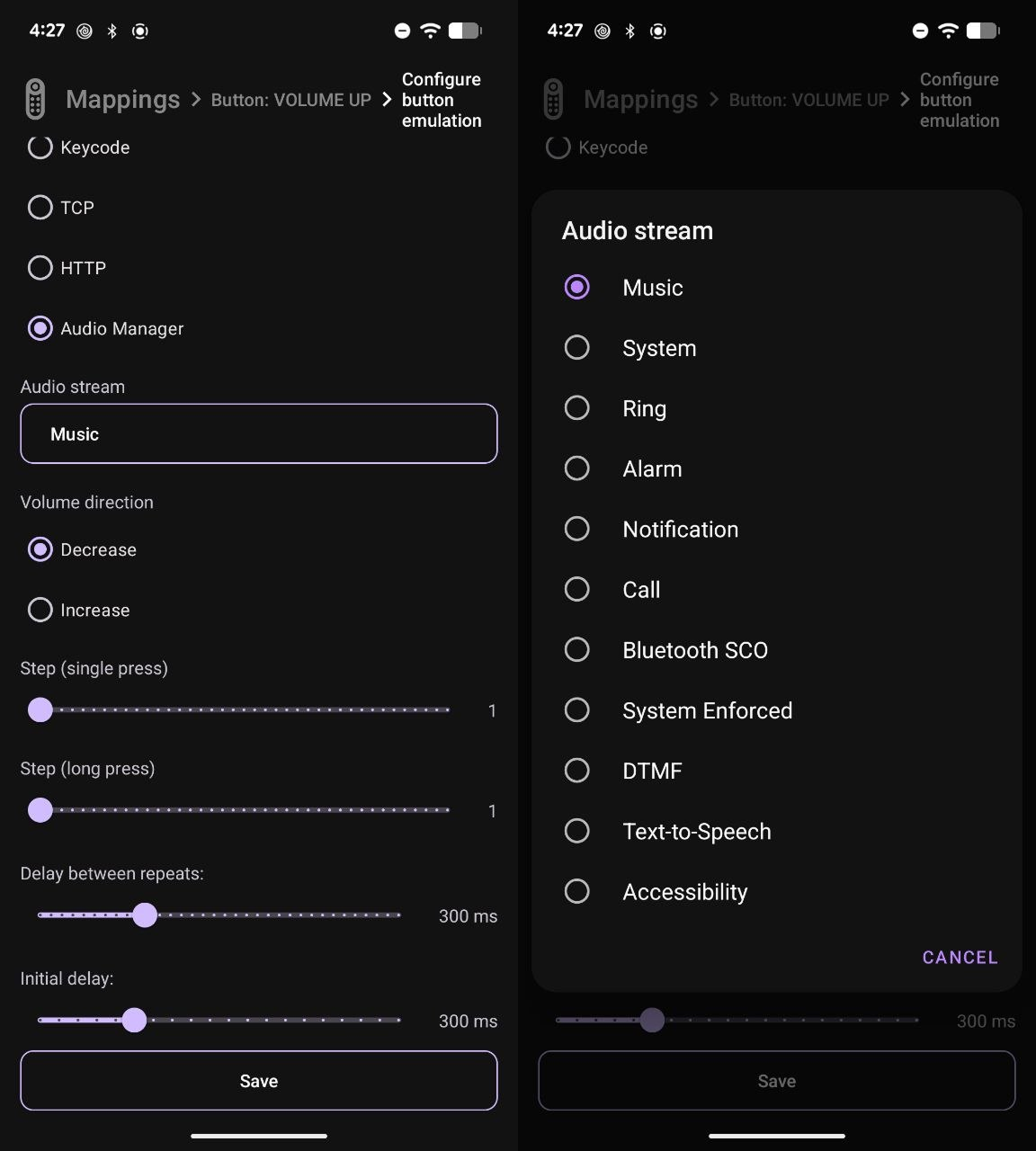
Audio Manager mode allows to control volume for different types of audio streams in Android system. You can select audio stream, volume change direction, step for single/long press and delays. So using this mode you can change volume step for example on your Android device.
Constraints
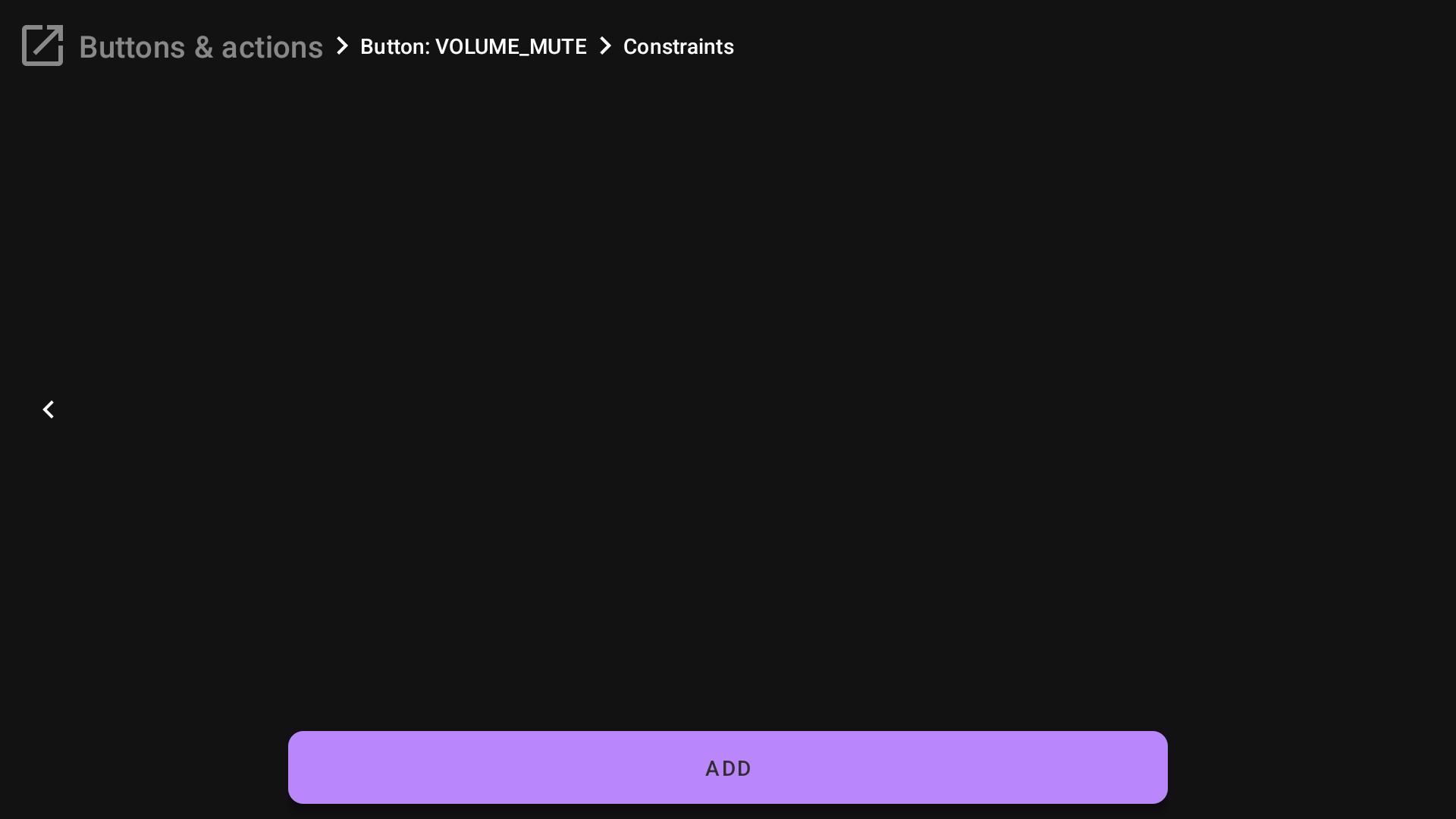
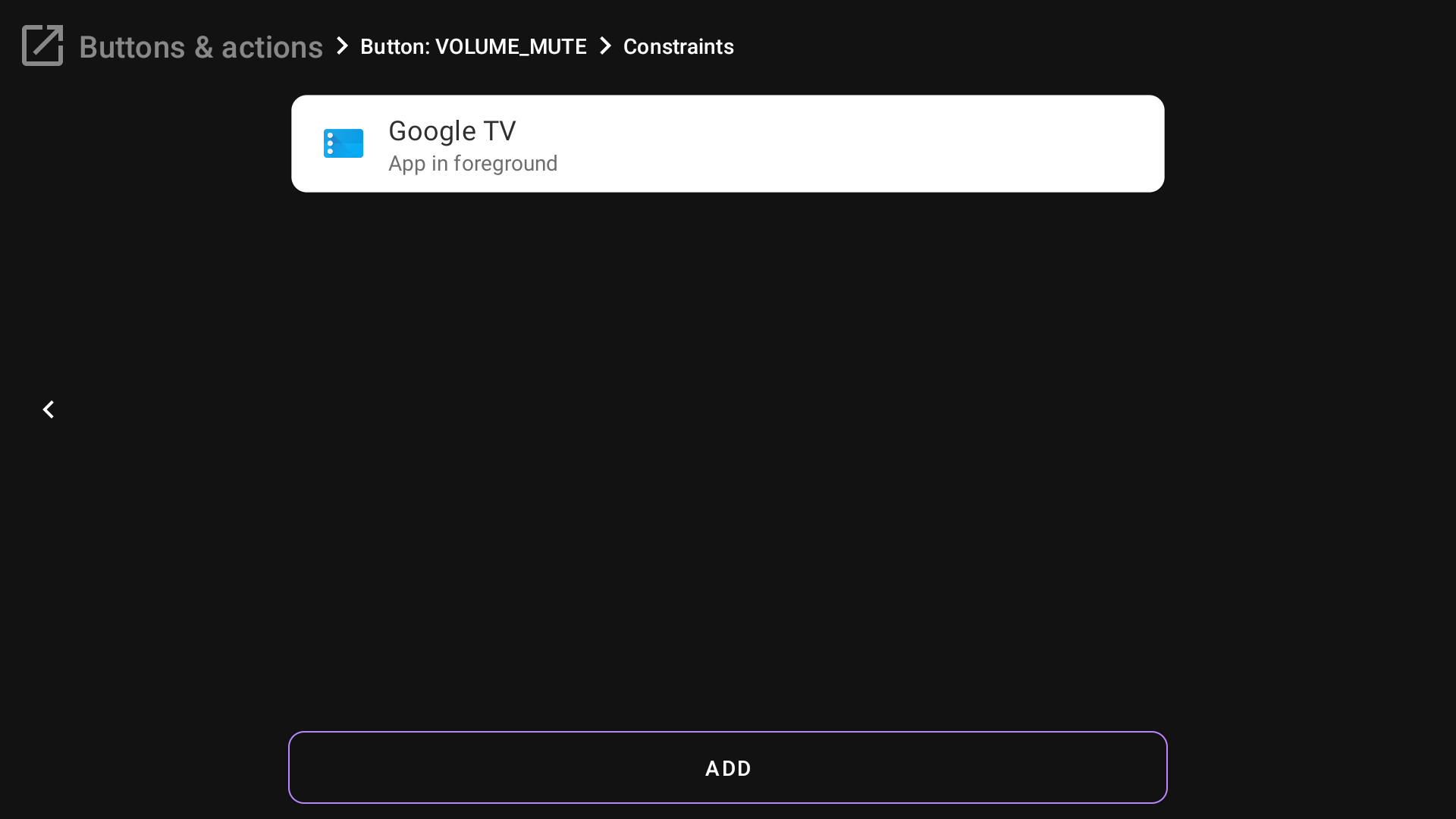
You can set restrictions so that remapping works based on the foreground app, remote control, or playback state in a selected app. You can do this in Constraints. Open Constraints, then press Add to add a restriction. 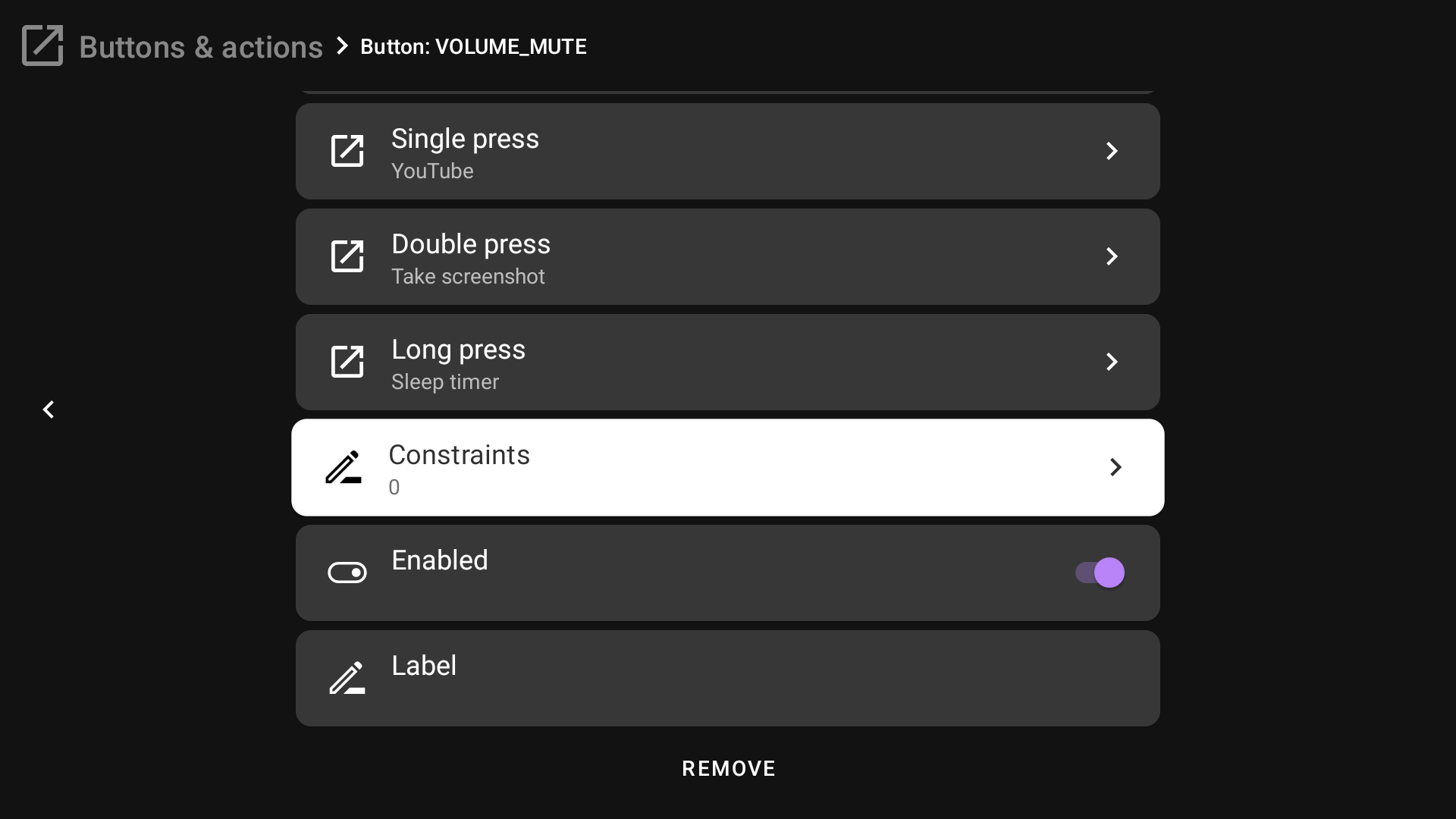
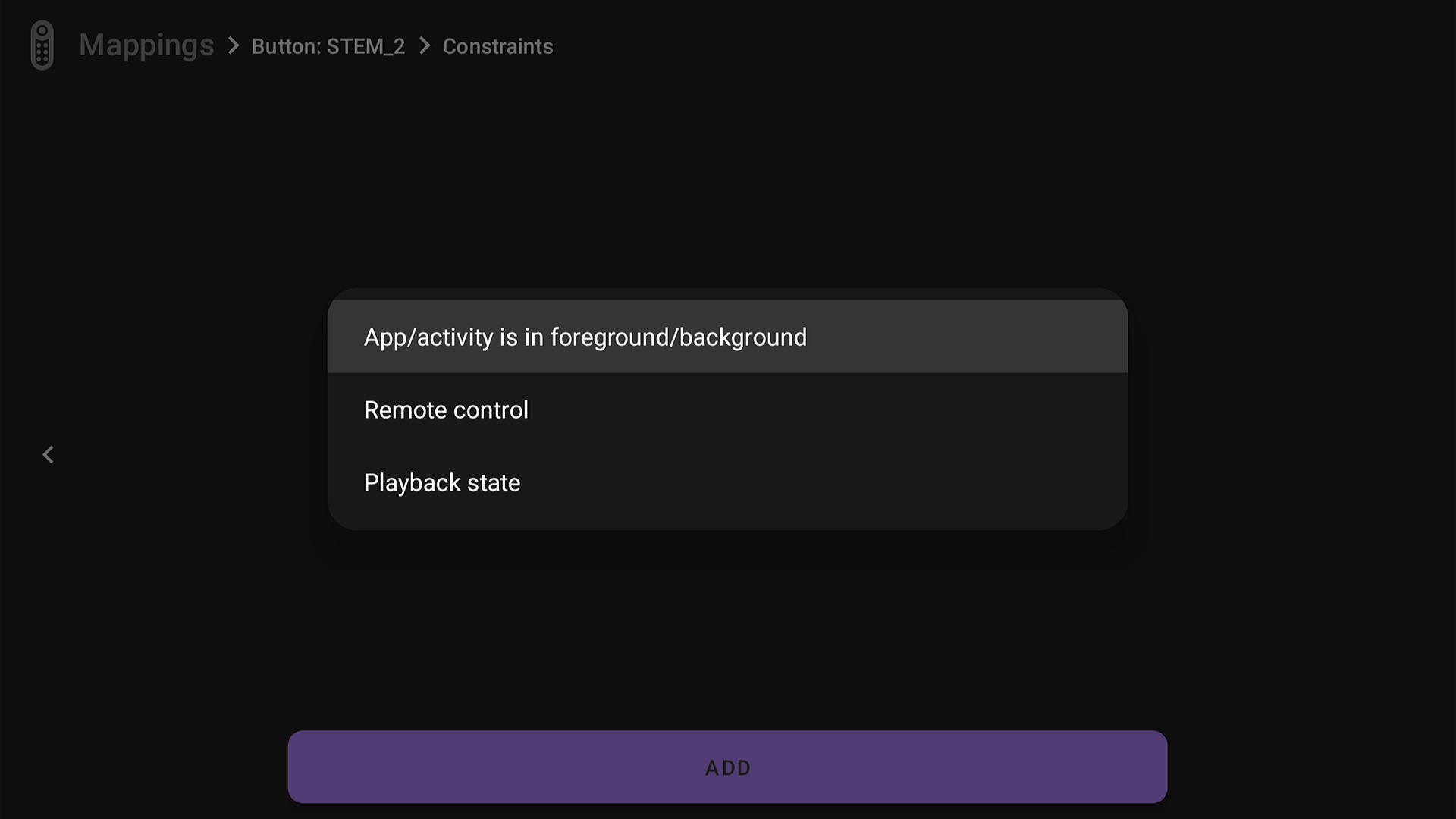
App/activity in foreground/background
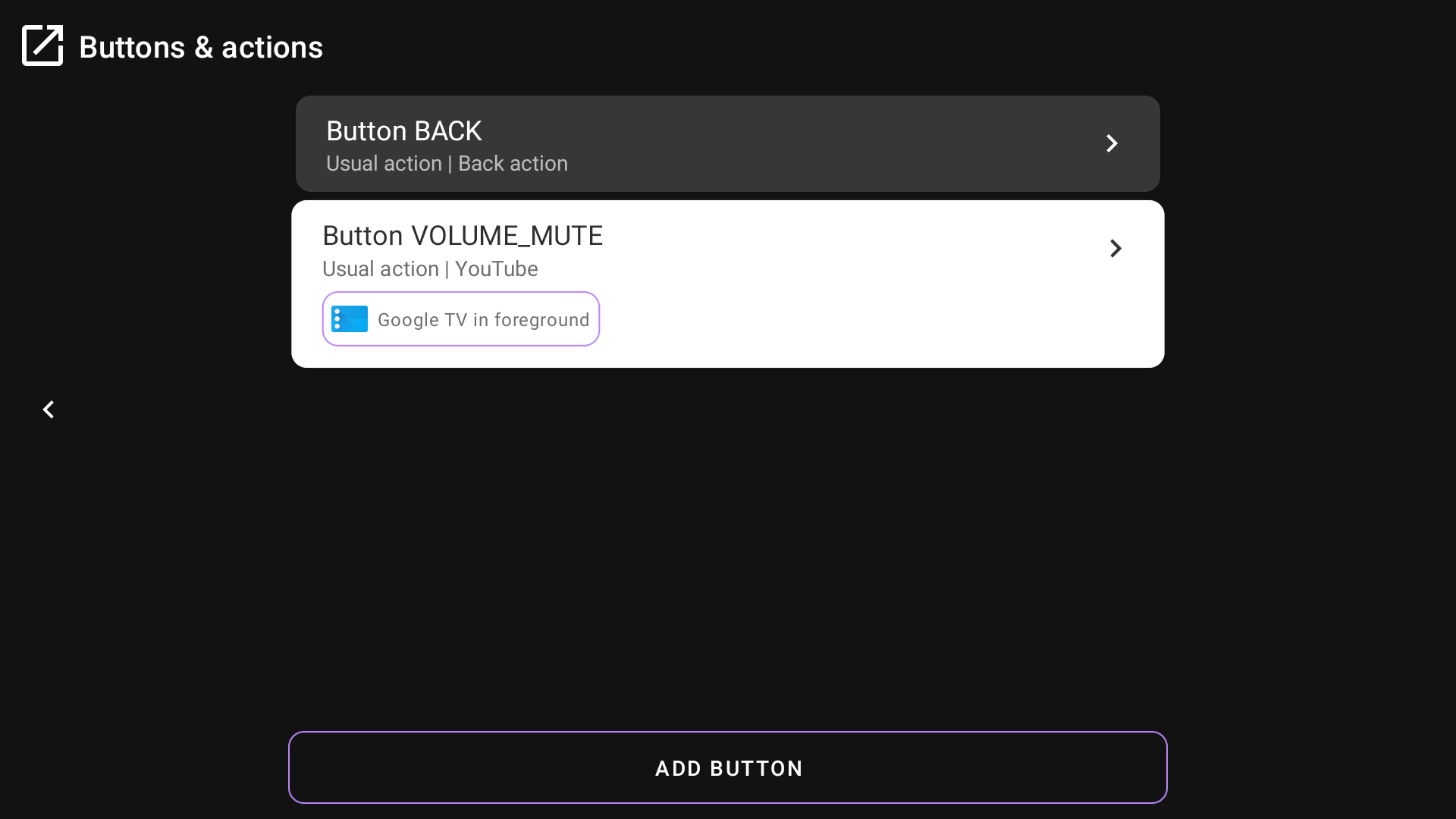
Choose whether the app must be in the foreground or background, then select the app. In this example, remapping works only when the Google TV launcher is in the foreground. 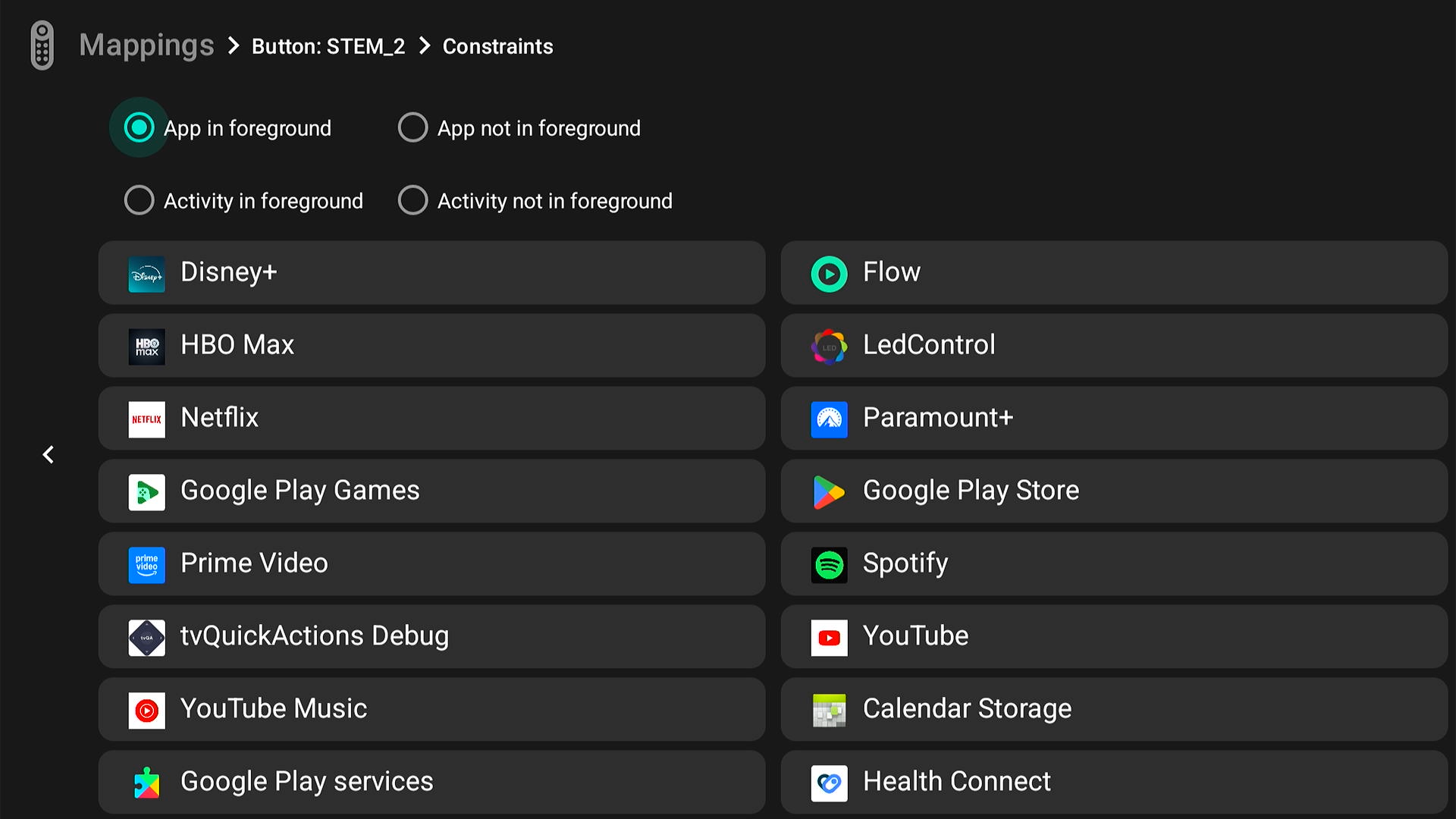
Remote control
Use this if you have several remote controls and want actions to depend on which remote is being used.
Playback state
You can also map actions based on playback state. For example, a mapping can work only when a video is playing in YouTube. 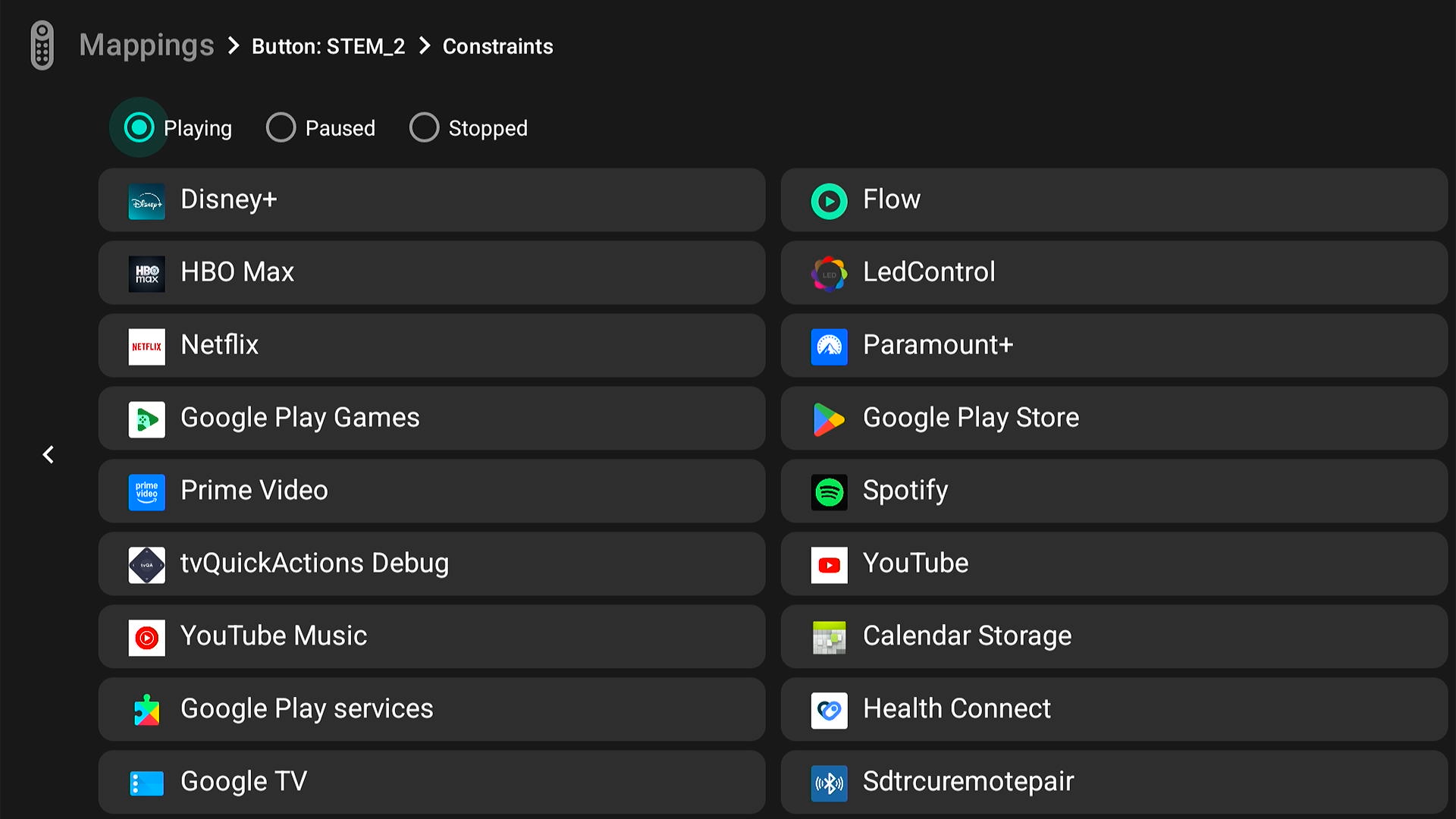
HDMI state
You can also create mappings based on the HDMI state. For example, in this case, we selected HDMI 1 and chose 'Connected', so the mapping will only work when these conditions are met. 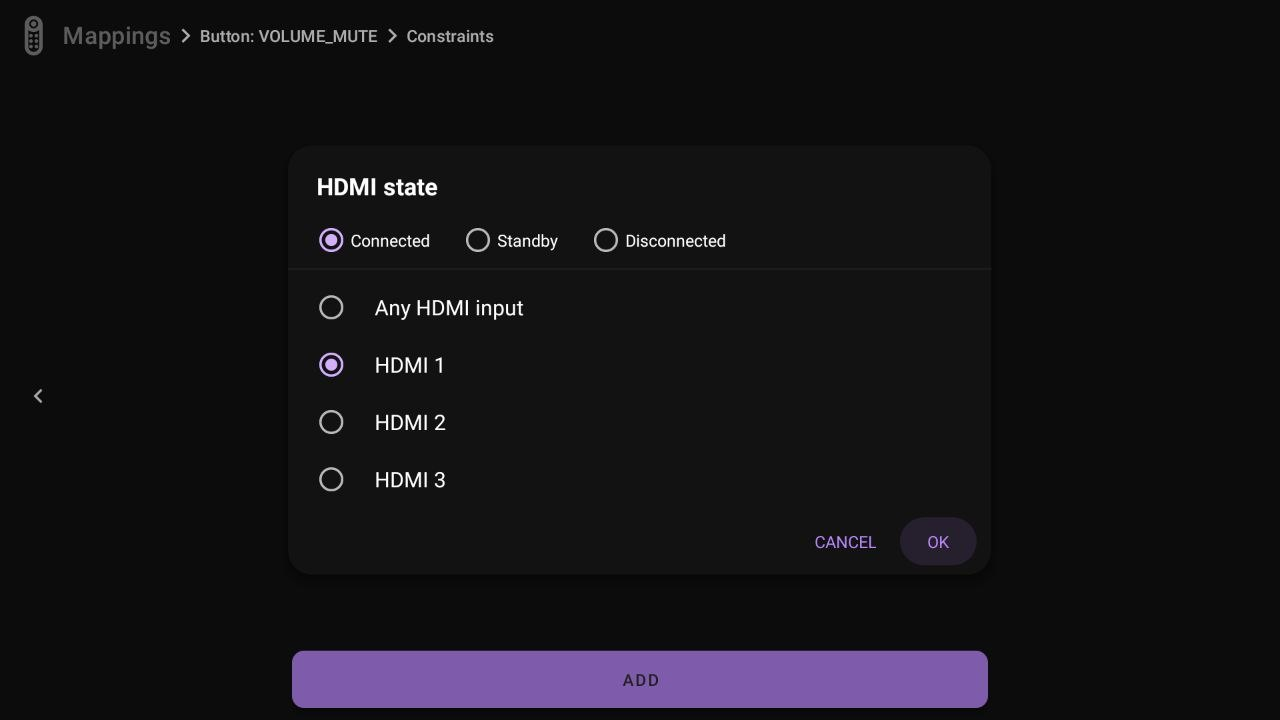
Trigger type
You can choose when mapping should fire 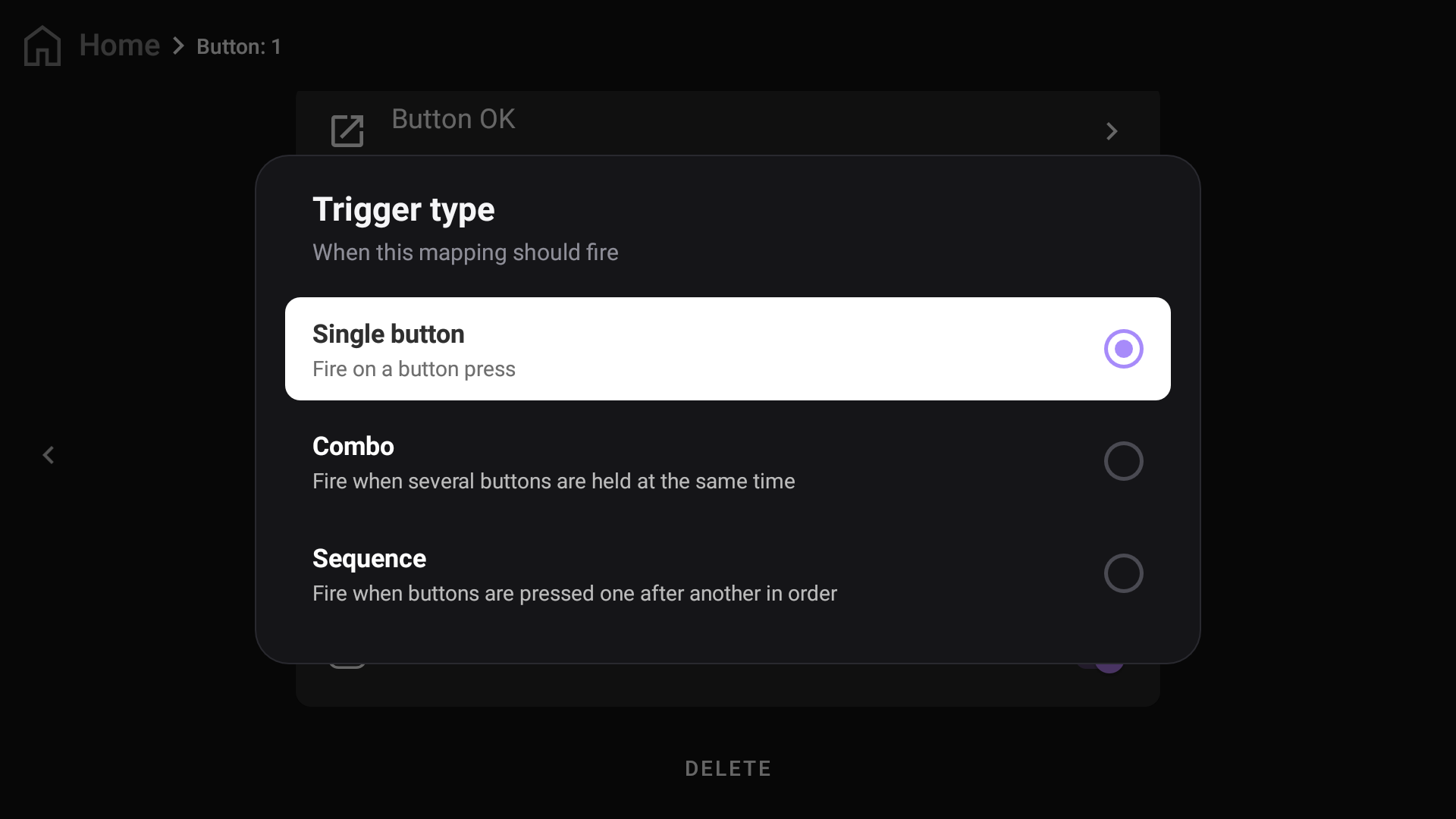
Single button
Fire on a single button press
Combo
Fire when several buttons are at the same time
Sequence
Fire when buttons are pressed one after another in order
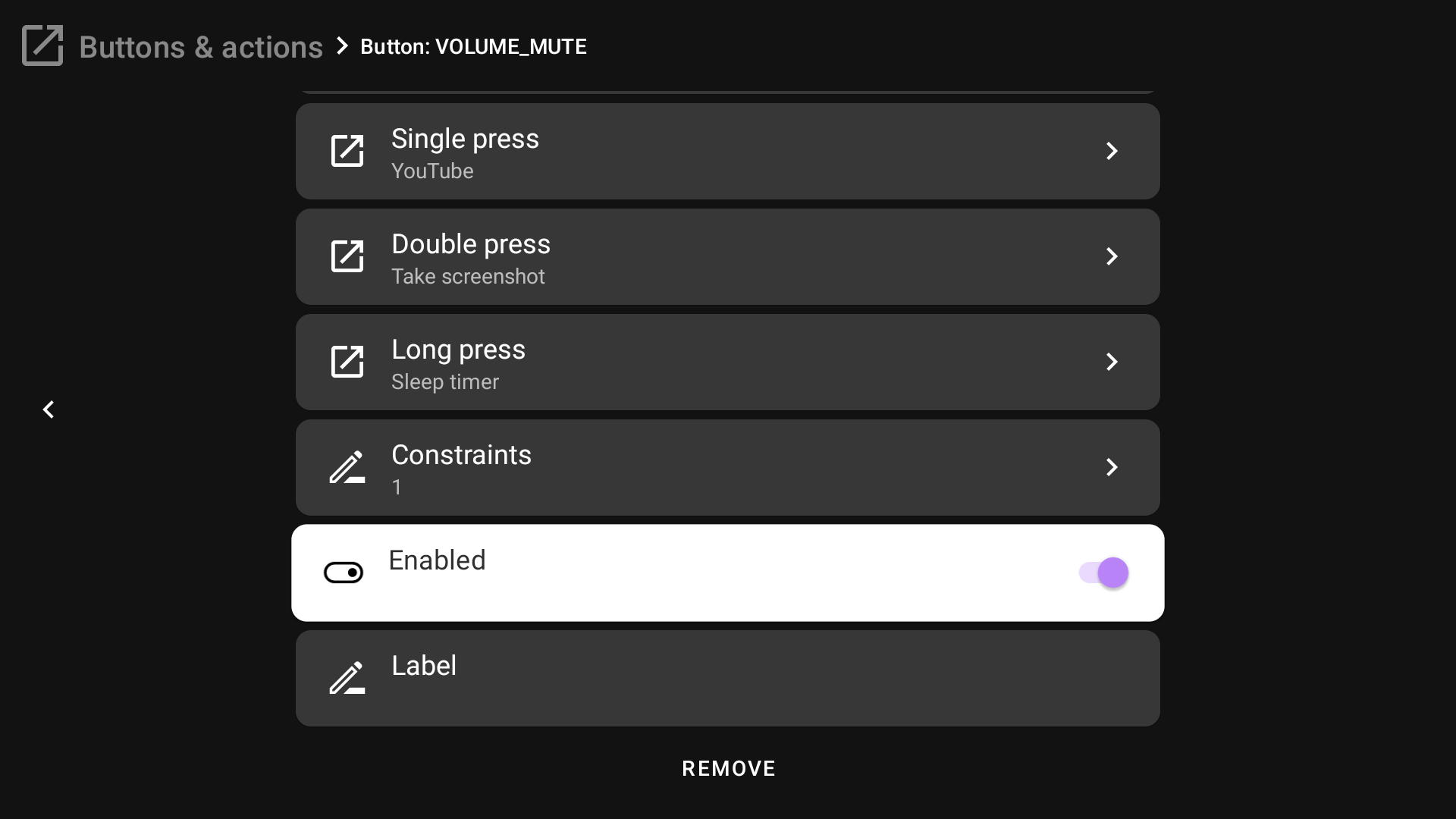
Enabled
You can disable a remapping instead of deleting it when you don't need it.
Label
You can add a custom label to a button if it has a non-descriptive name in the app, or for any other reason. This label is also used to sort buttons on the "Mappings" screen.
Icon
The icon option is related to the new 'Toggle mappings' function. It is only used as a visual aid to make this action easier to recognize in places where it may be used, such as menus.