Tap screen
Tap screen is a useful feature when you need to automate something, i.e. when creating macros. This function will emulate a tap on the screen at the given coordinates
- Enter a custom title for the tap screen
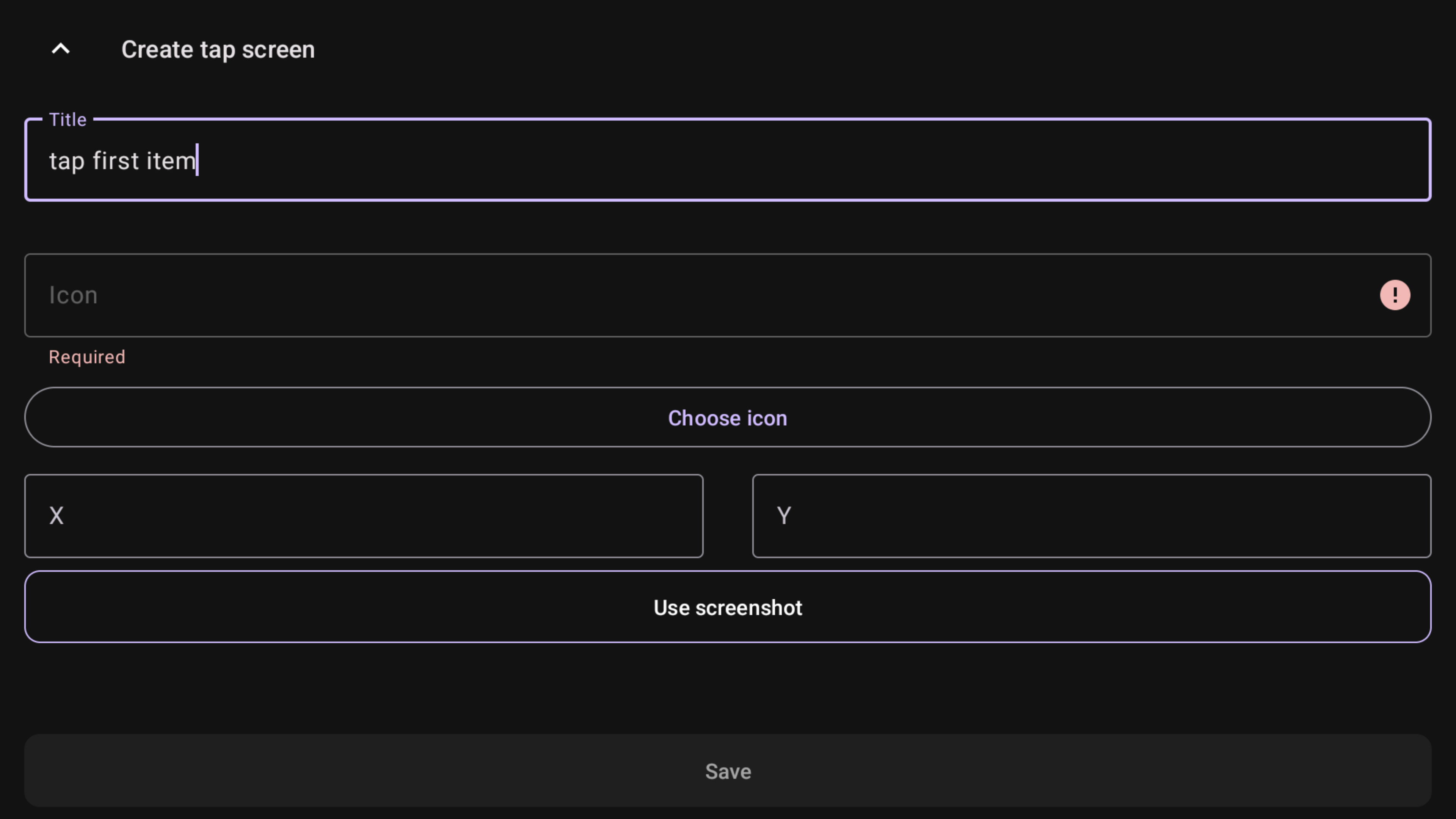
- Choose an icon from the dialog
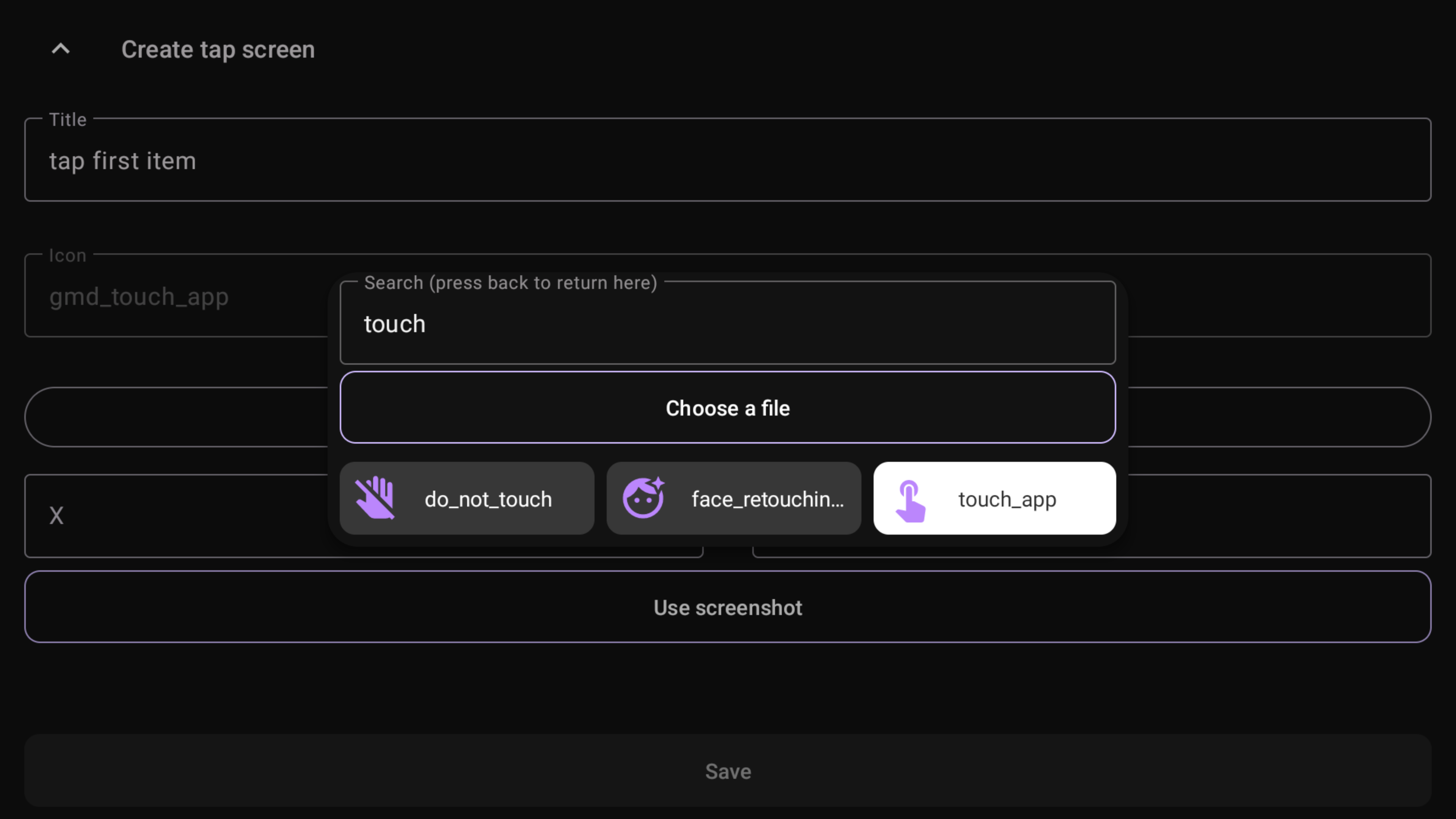
-
Then you can enter coordinates by yourself or using a screenshot. Press "Use screenshot"
IMPORTANT
You must have any file explorer installed to use screenshots to set coordinates -
Select a file manager, then your screenshot. If you make screenshots using tvQuickActions, you can find them in /sdcard/Pictures/Screenshots
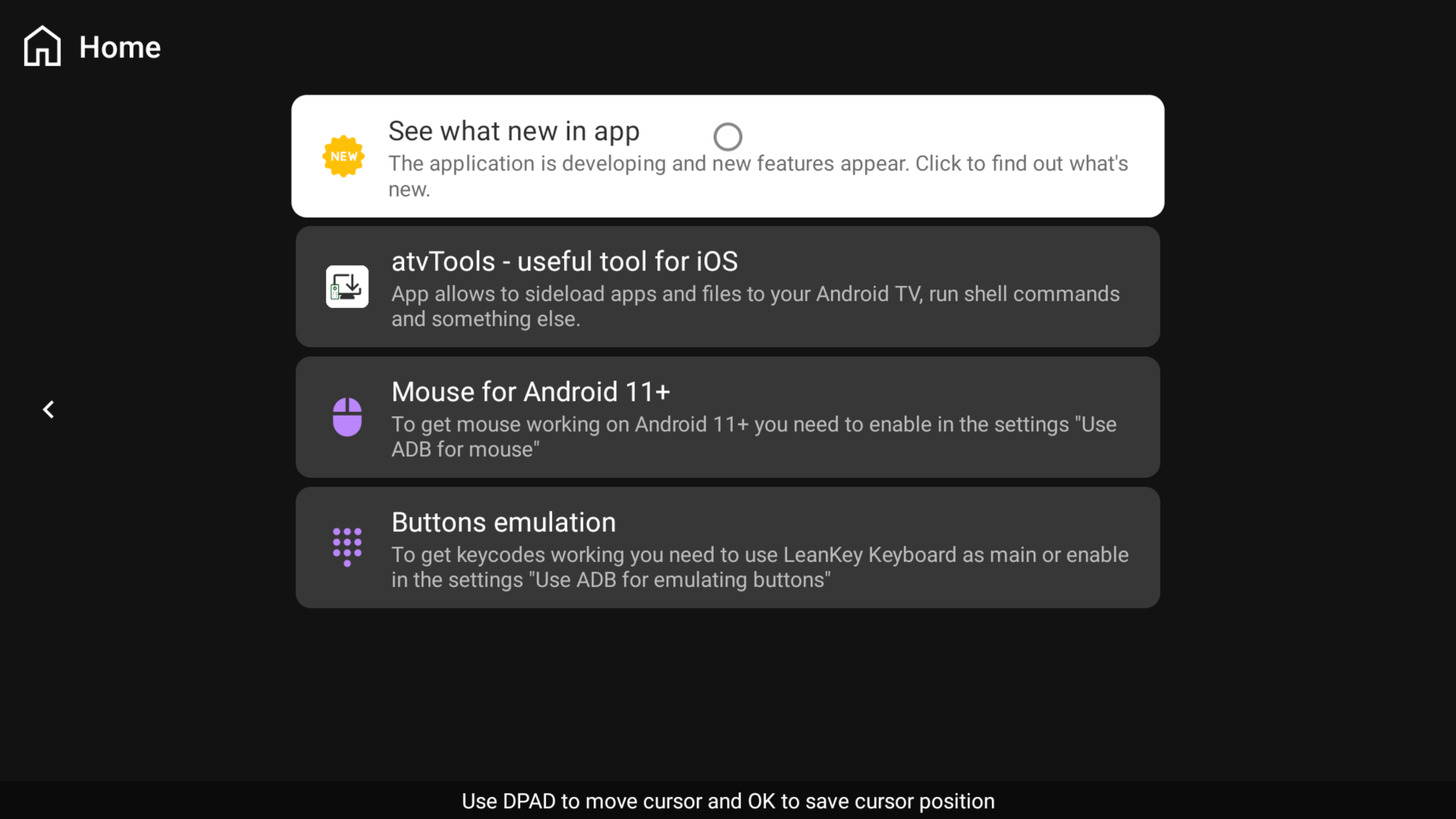
- The app will open on the full screen. Now you can choose coordinates using a cursor which you can control using DPAD. Press OK to save the coordinates
- Save changes
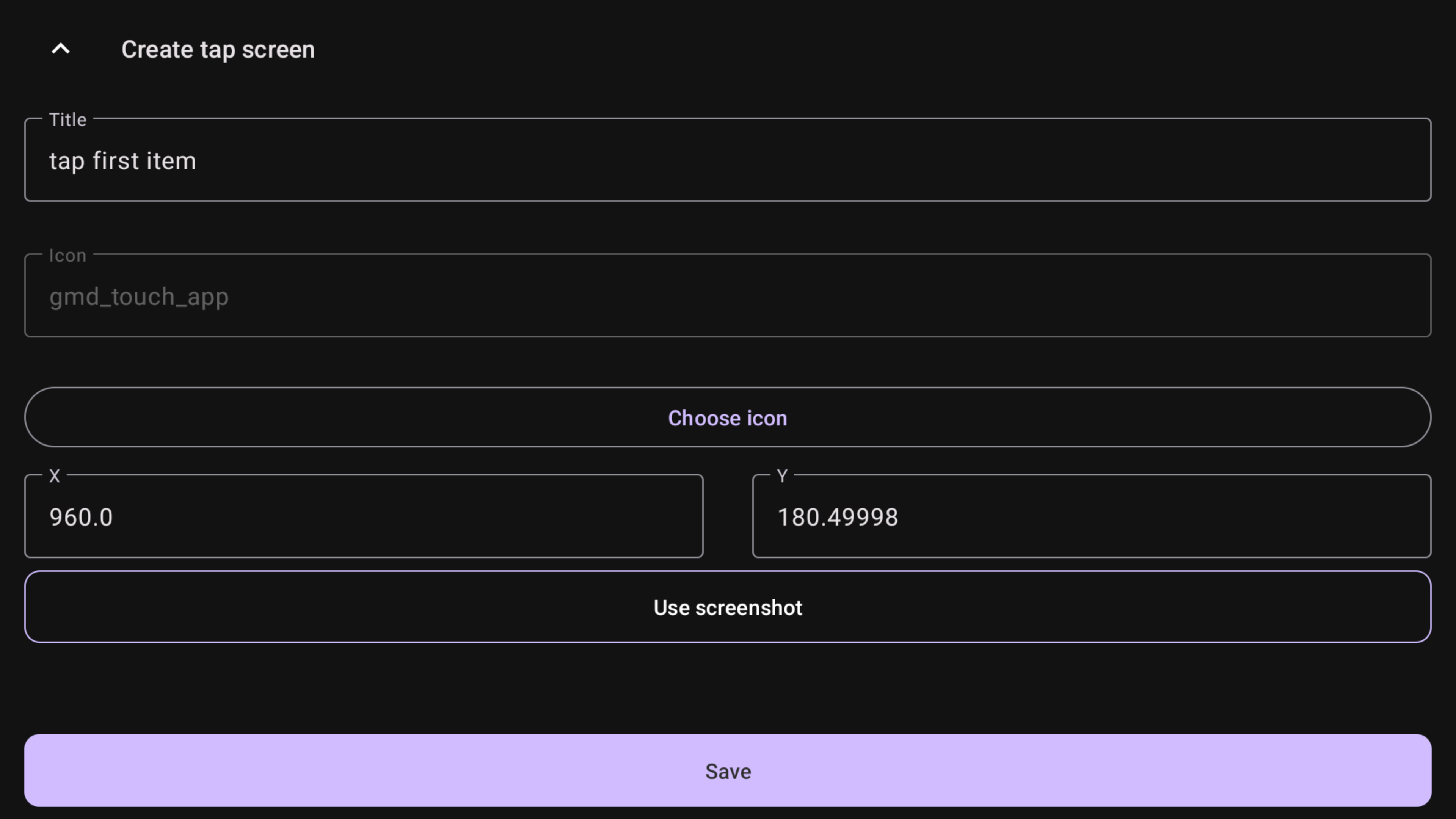
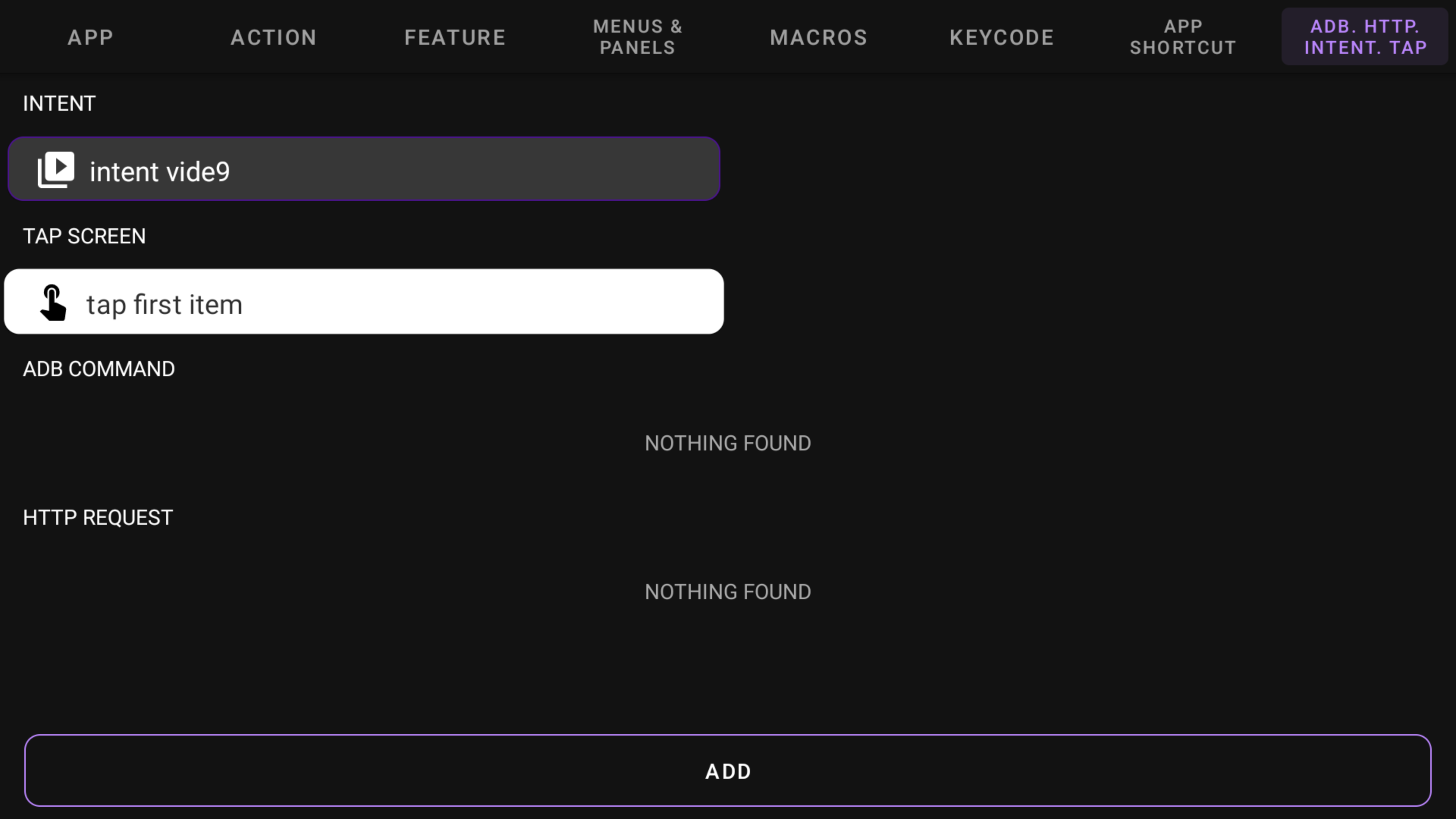
- Now you can choose the created "tap first item" from the list, it will emulate tap at the selected coordinates
Android 11+
To get a working tap screen feature on devices with Android 11+, you must enable "Use ADB for mouse" in the ADB tab of the tvQuickActions settings