Intent
You can find more information about intents here. Intents are designed for experienced users who know how to use them, but templates will help in some cases.
Fields
tvQuickActions fields used to display an action:
- Icon
- Title
Intent fields:
- Type - activity, broadcast receiver, service
- Action
- Categories - comma-separated list, e.g. category1,category2
- Data
- Type
- Flags - use "Select flags" if needed; otherwise, FLAG_ACTIVITY_NEW_TASK will be used
- Package
- Class
- Extras
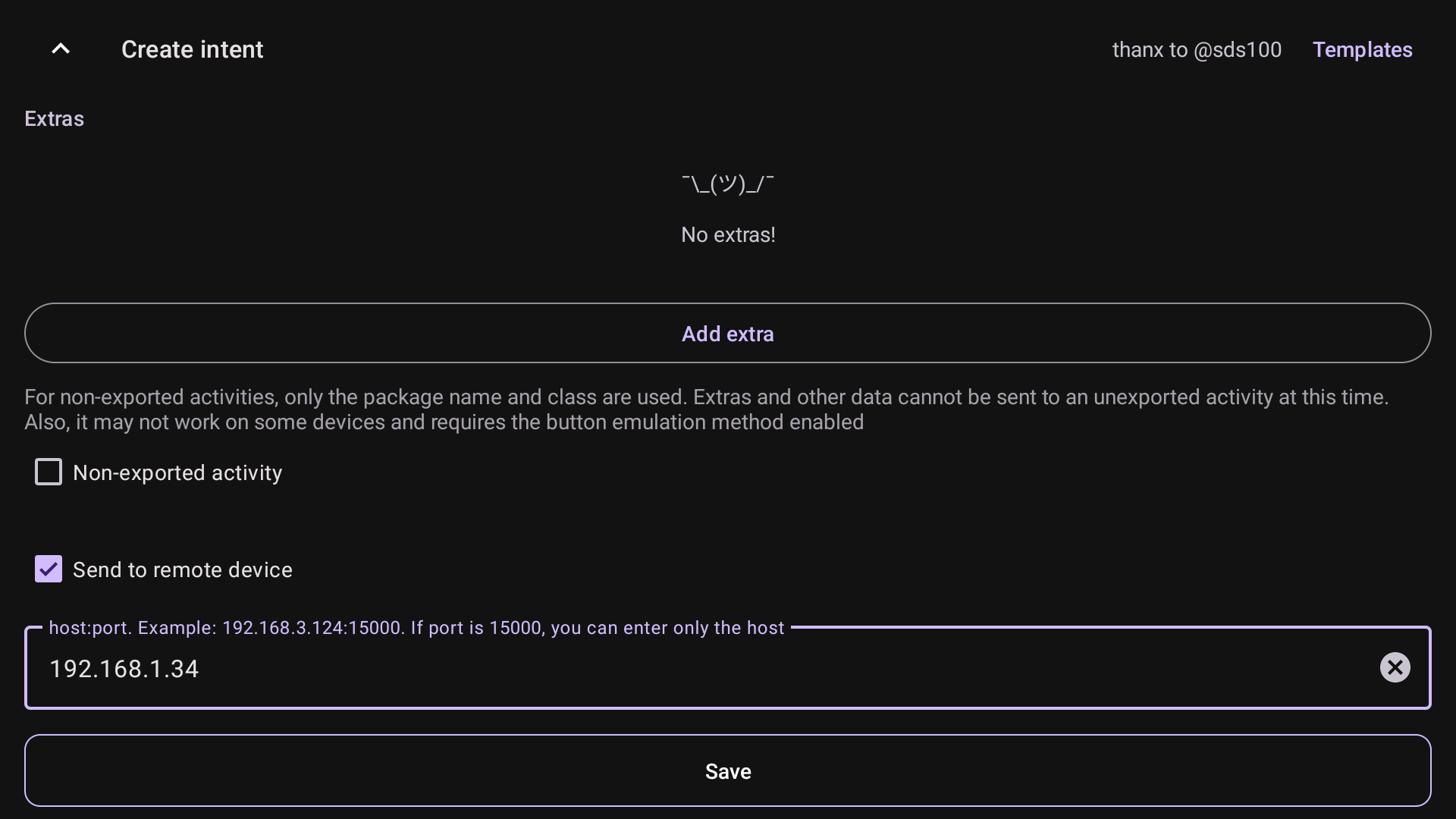
- Non-exported activity
- Send to remote device
tvQuickActions Pro supports opening non-exported activities, but this may not work on some devices. Select the special checkbox if you need this. To make it work, "Use ADB speed up" must be enabled, and the WRITE_SECURE_SETTINGS permission is required.
You can also configure sending an intent to another Android device with tvQuickActions installed and "Use ADB speed up" enabled. Just enter the IP address of the remote device.
Open video URL example
In this example, we will use an intent to open a video URL:
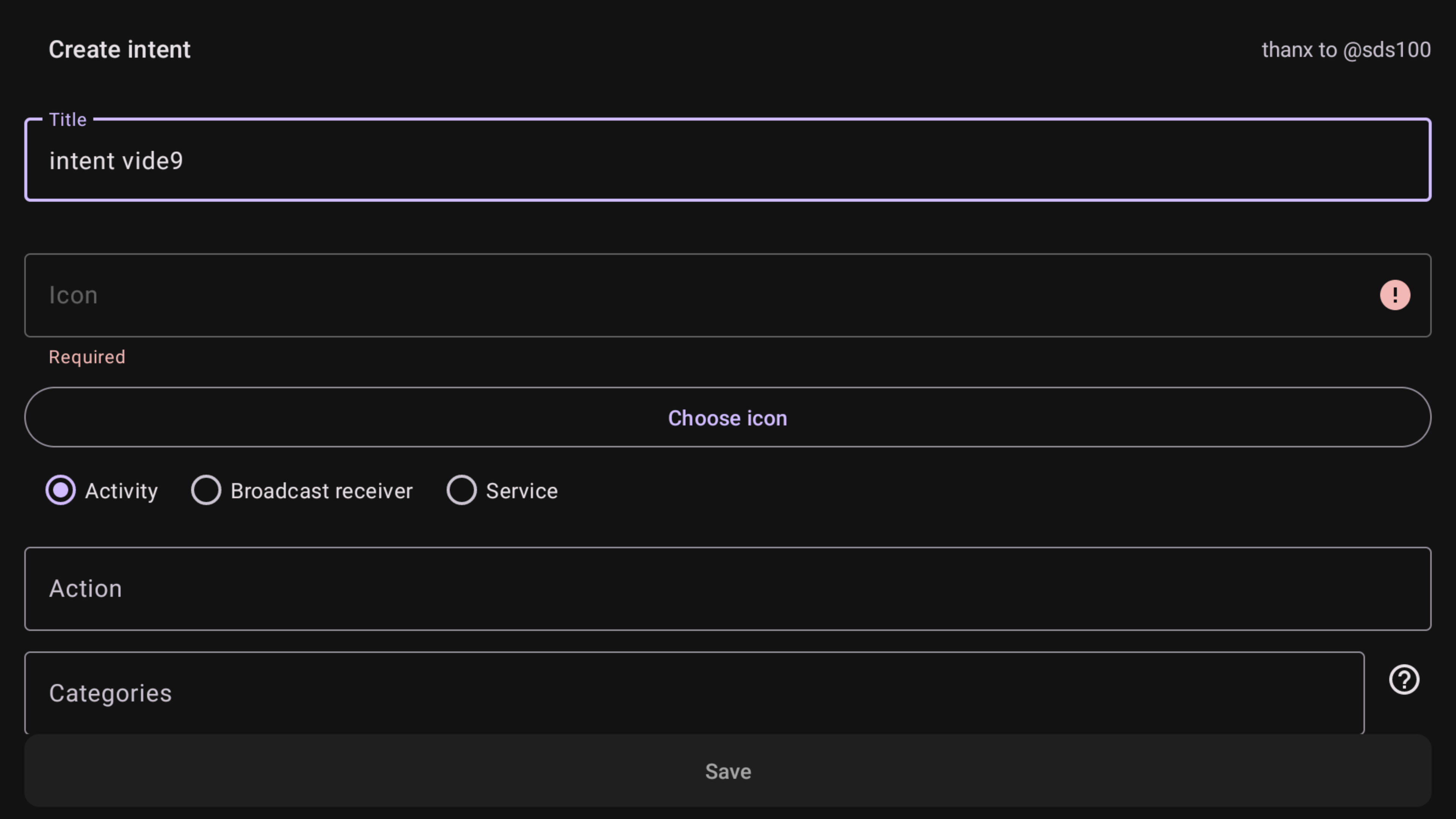
- Create new intent
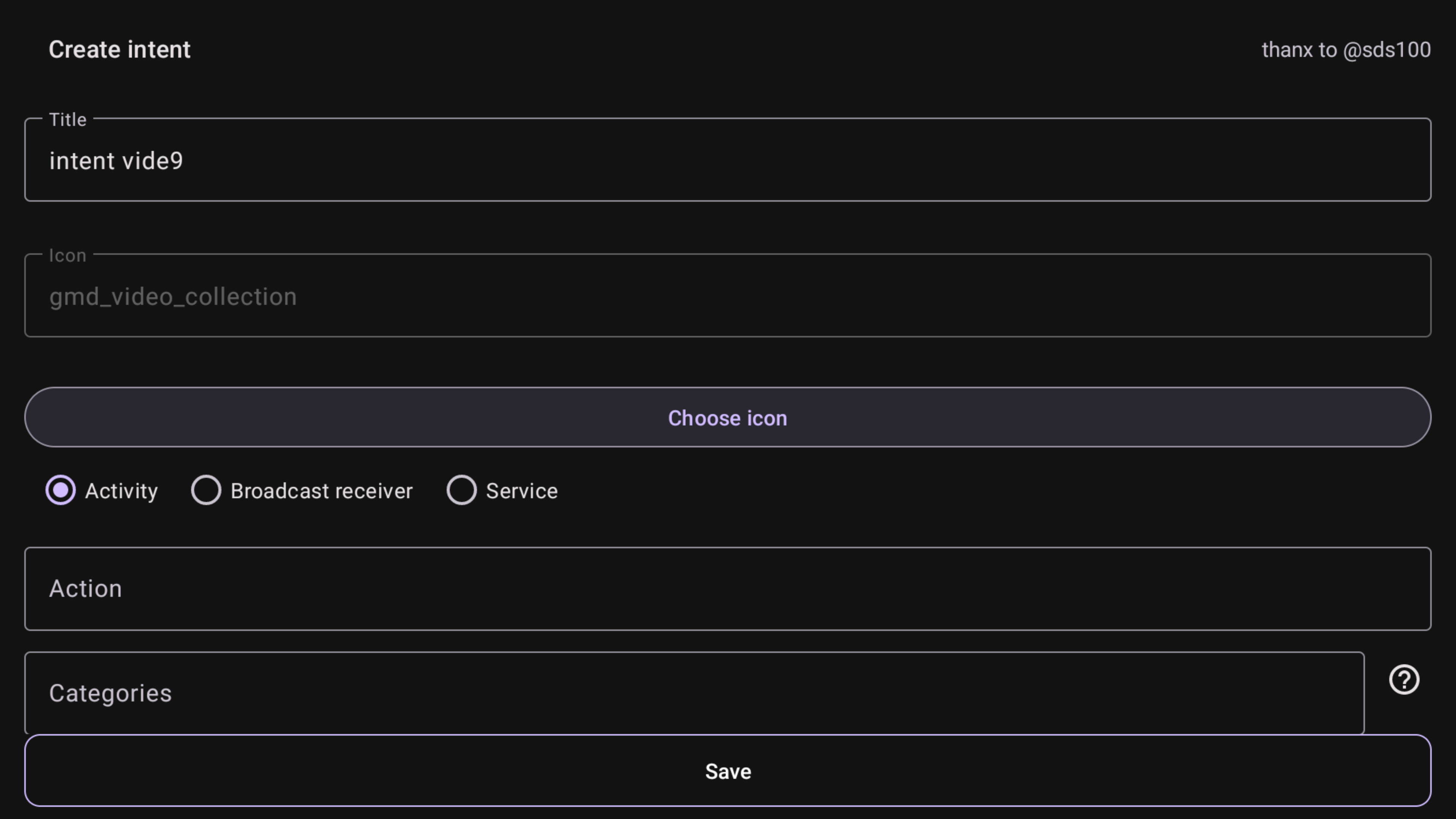
- Change icon/title if needed
- Select the "Activity" intent type because we need to start an activity
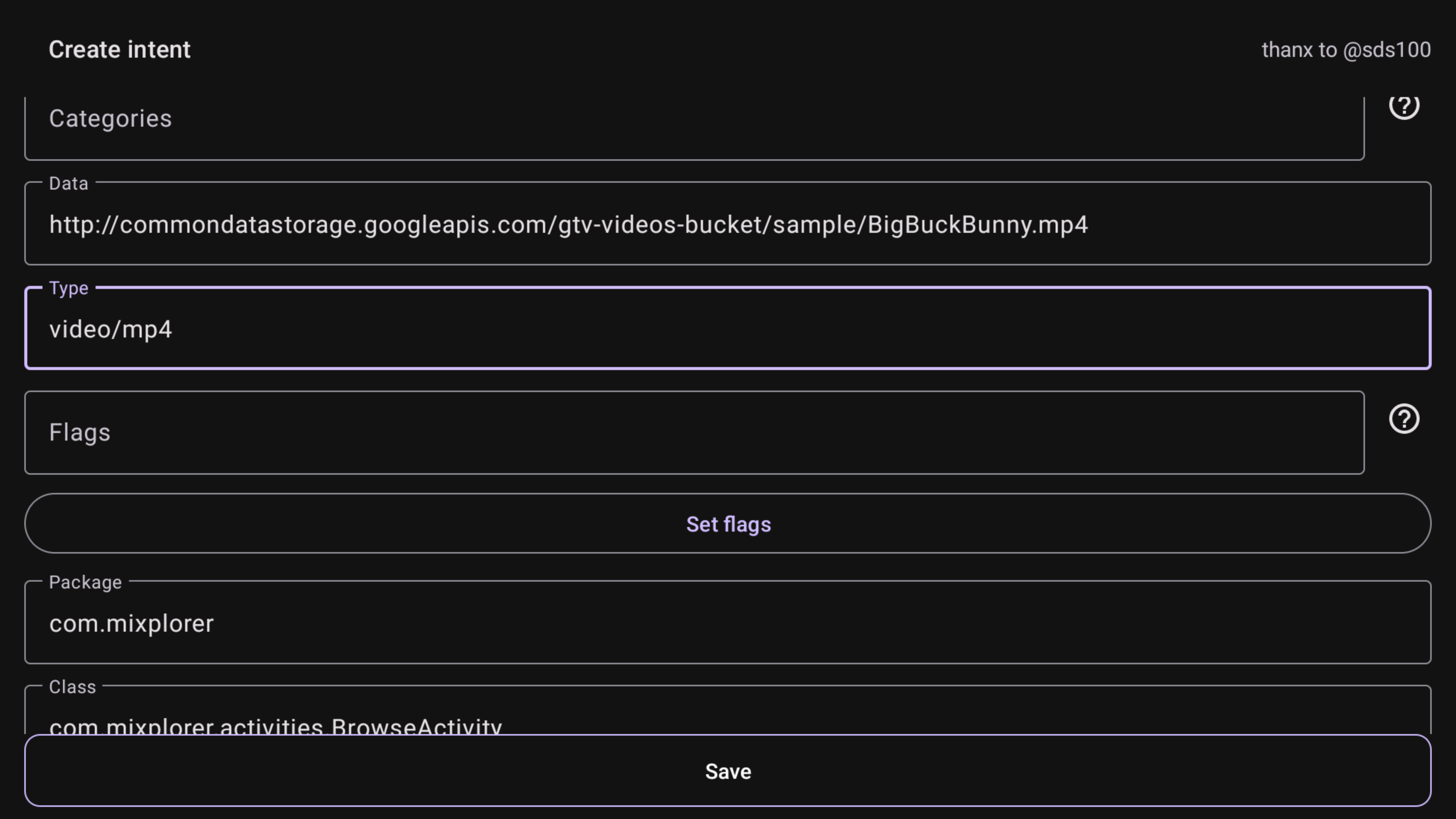
- Then enter the file path or URL in Data, and the MIME type in Type
- Save the intent and assign it to a button action
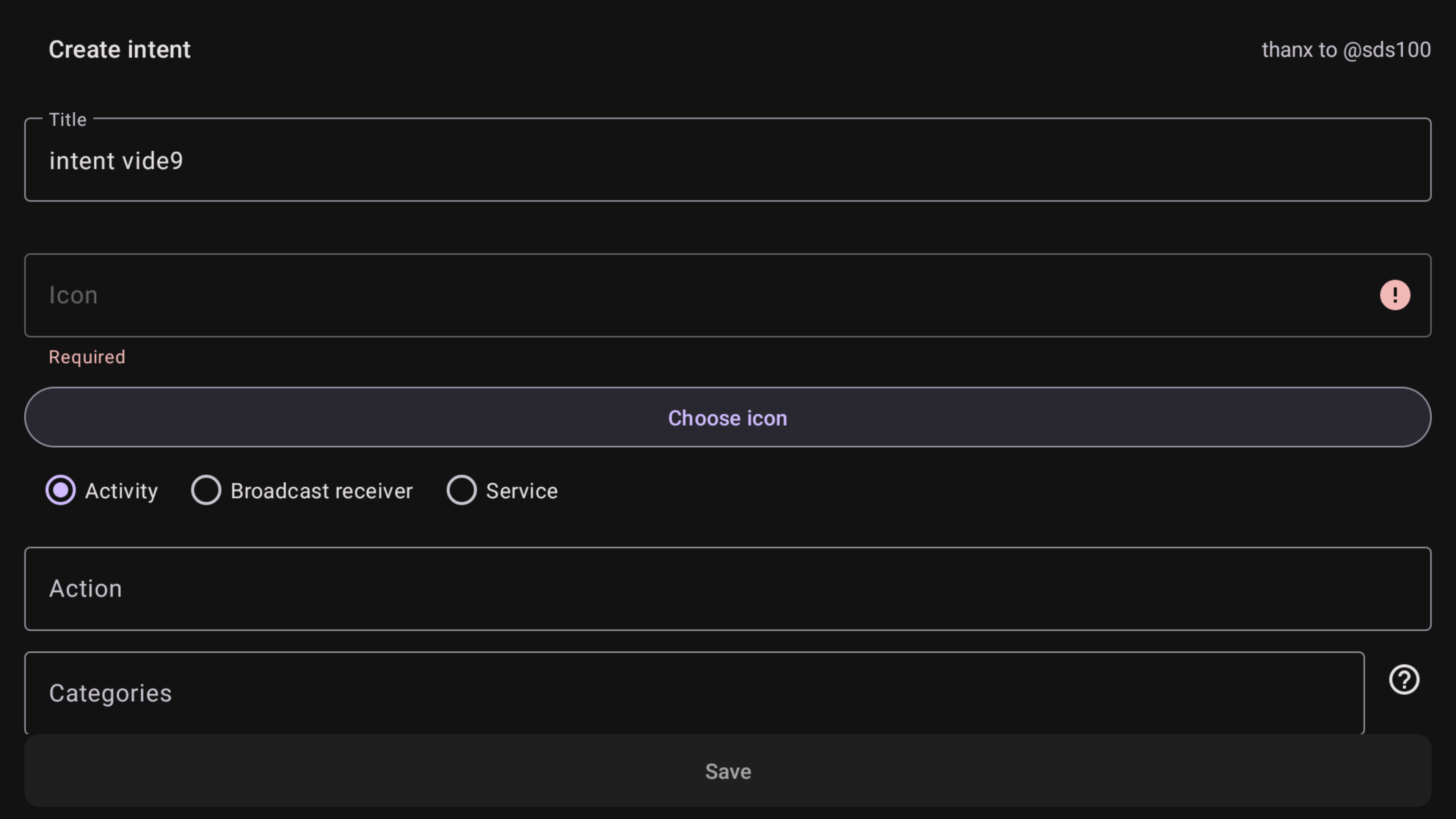
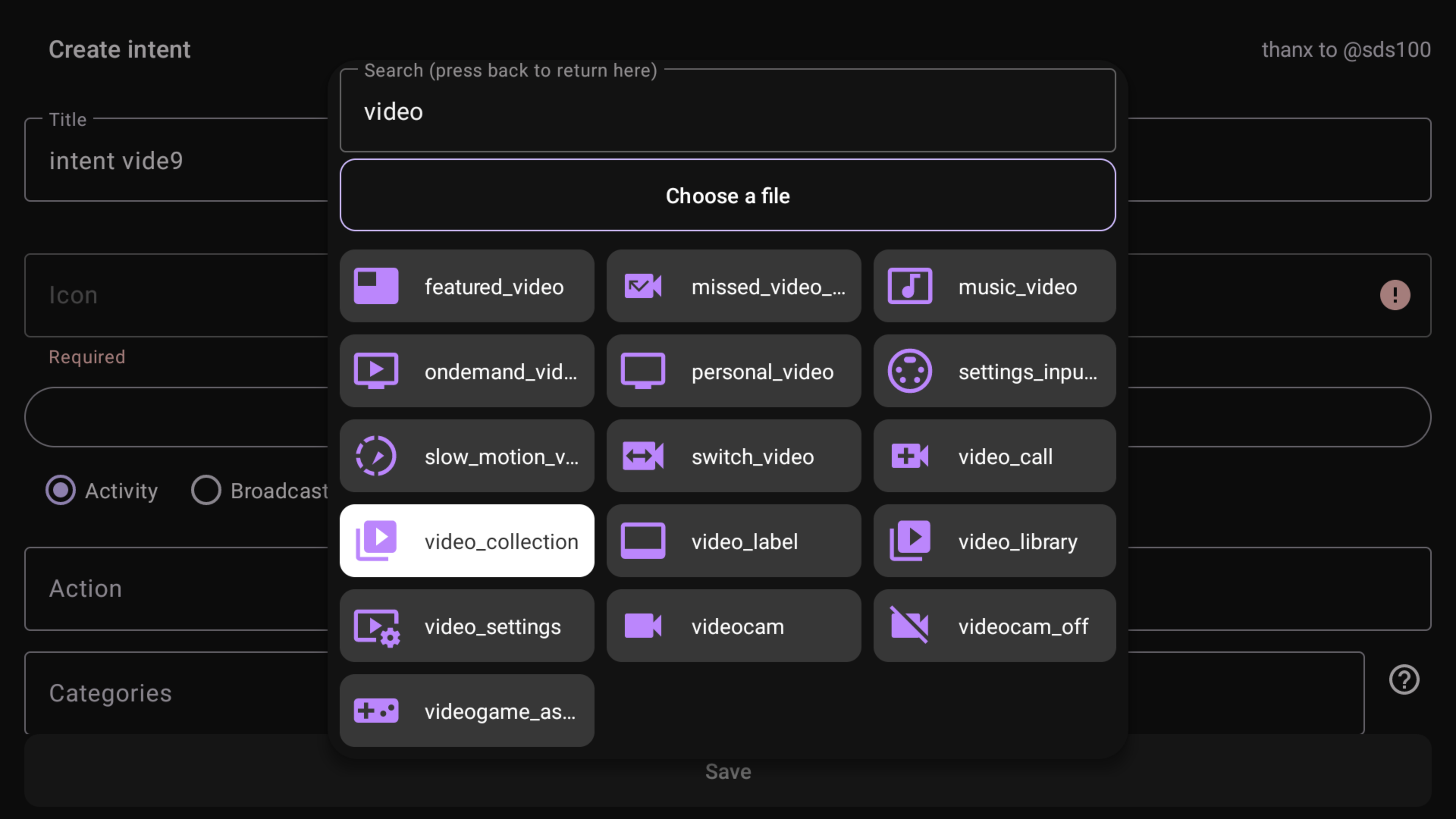
- When you run this action, you will be able to choose a player from the installed apps
- You can also set the player manually by entering the package/class name or using the "Choose activity" button. In this case, the video will immediately open in the selected player.
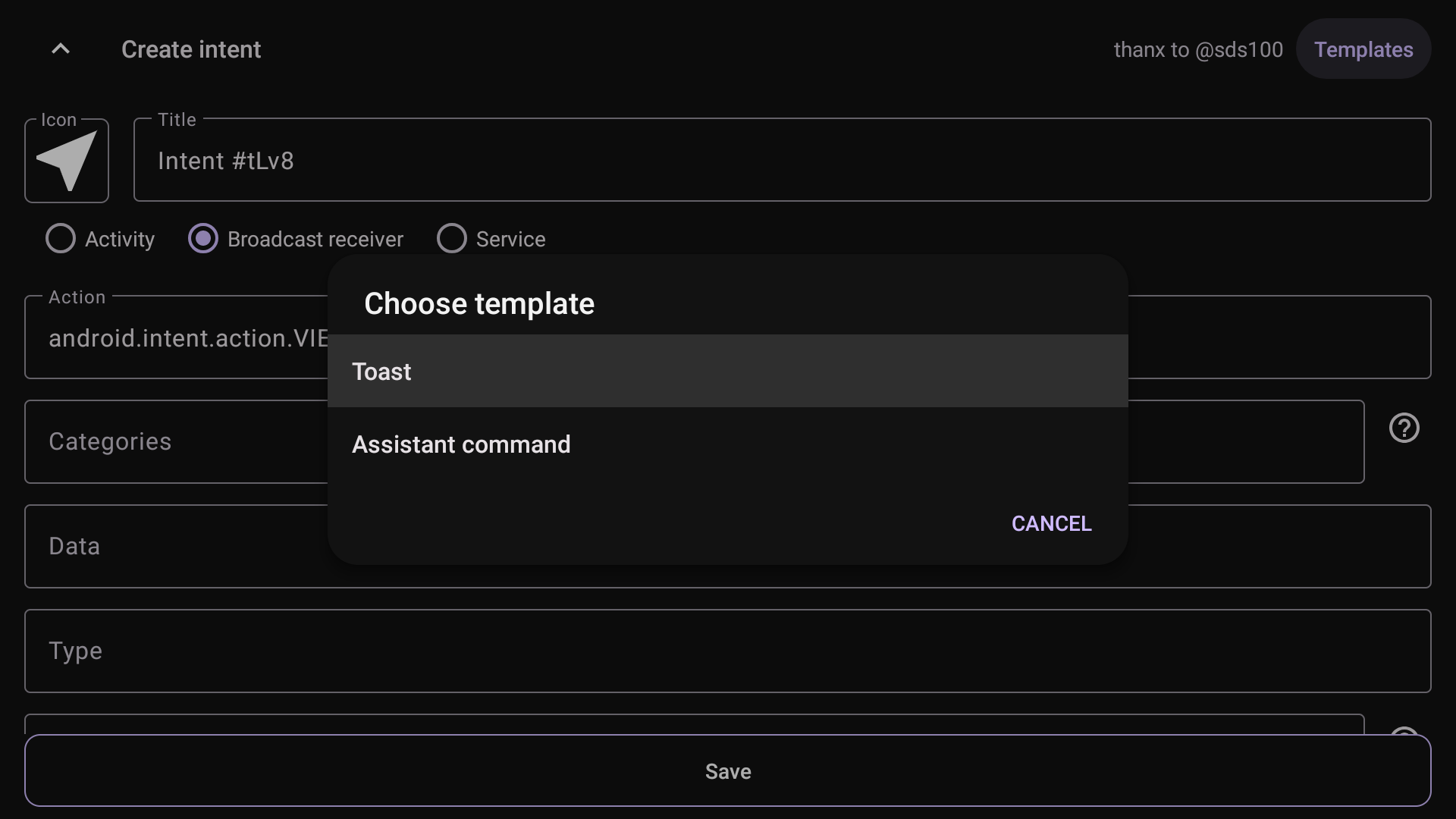
Templates
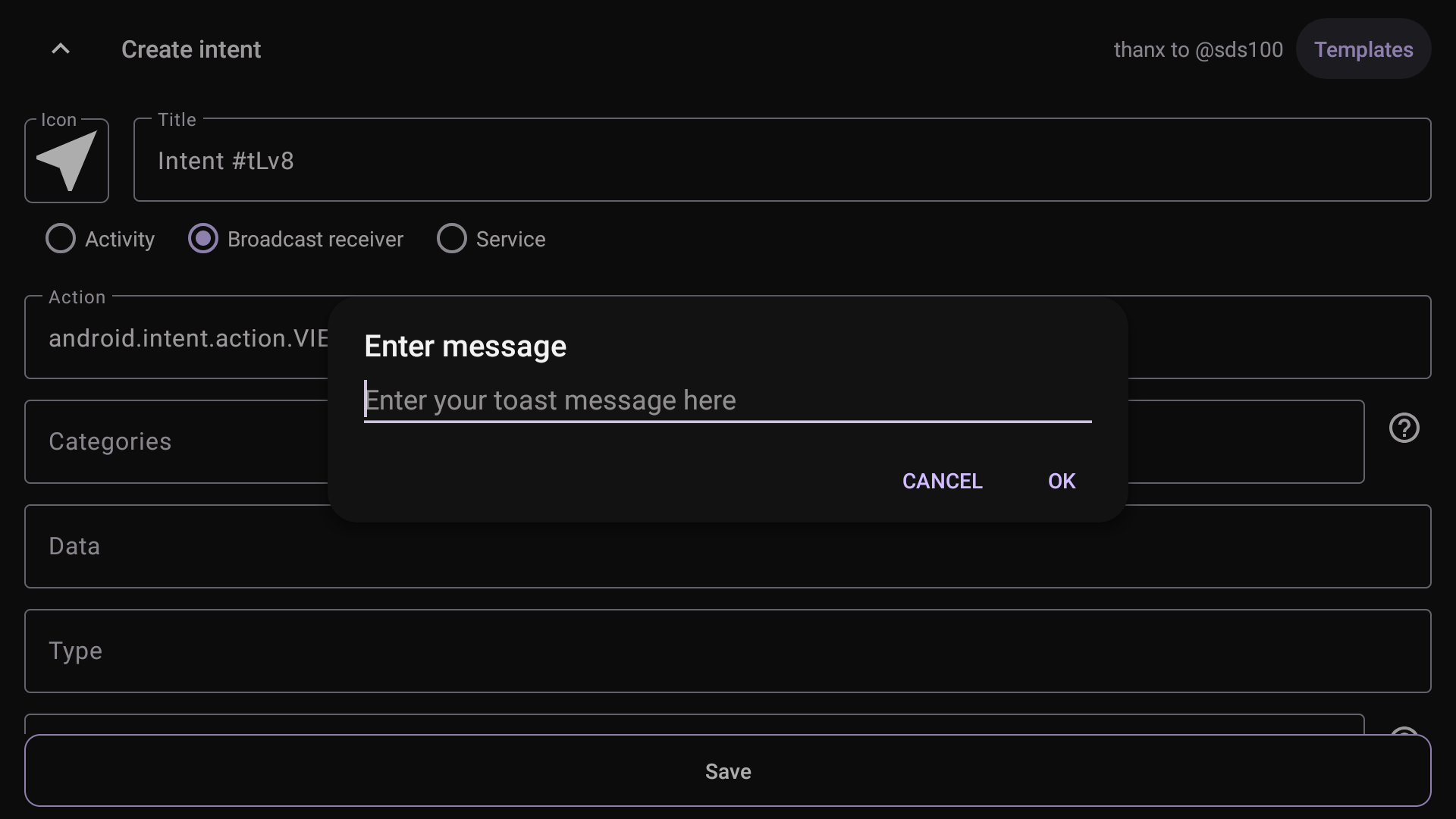
Intent actions now have templates. You can quickly create an action to display a toast or send a command to the assistant.